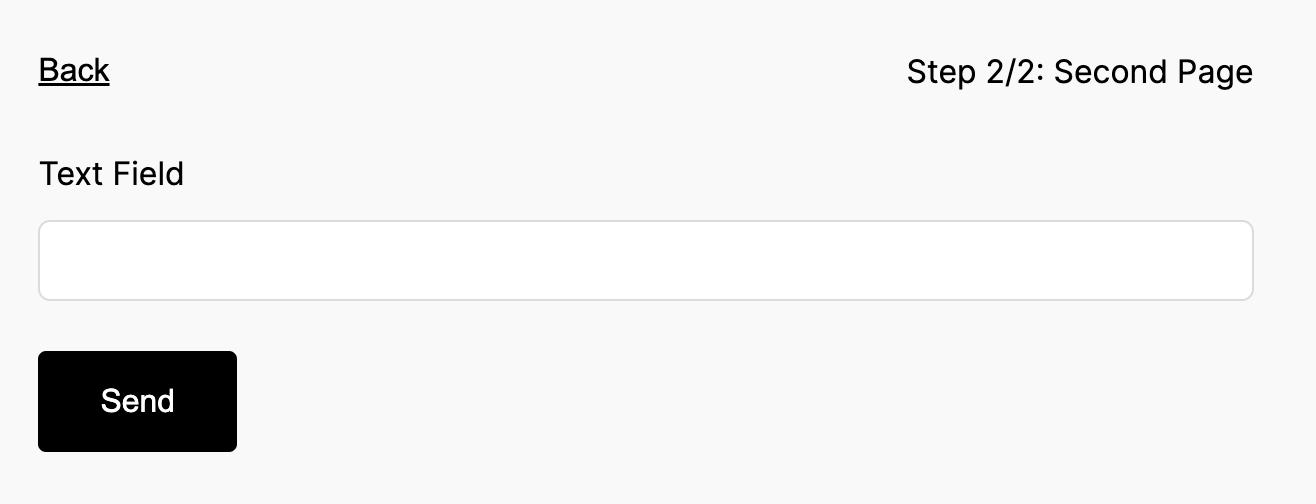

Setting up multi-page forms using page break fields
- On your Form Editor, head to Build tab.
- Click "Add a Field" button then select page break.
- From there, you can now add a name. This will serve as the label of each page.
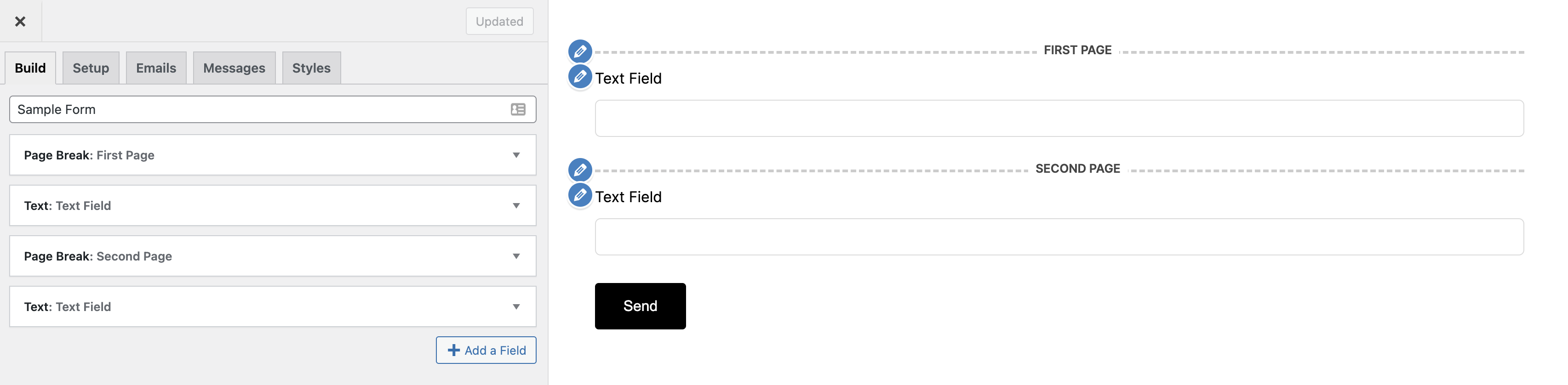
- In setting up a multi-page form you need atleast two page break fields, the first one will be for the first page of your form then the second page break field will be for the next page, so on and so forth.
- Imagine each page break field as a page itself.
- If you want to customize the "Step Label" just head to "Messages Tab" then head to the bottom and you will see the "Current Page" option. Change it to your preferences.
- Personalize your page break field further by adding Additional CSS class/es for a more advance customization.
Here is and example of how your form builder may look like:
Here is an example of what your multi-page form may look like:
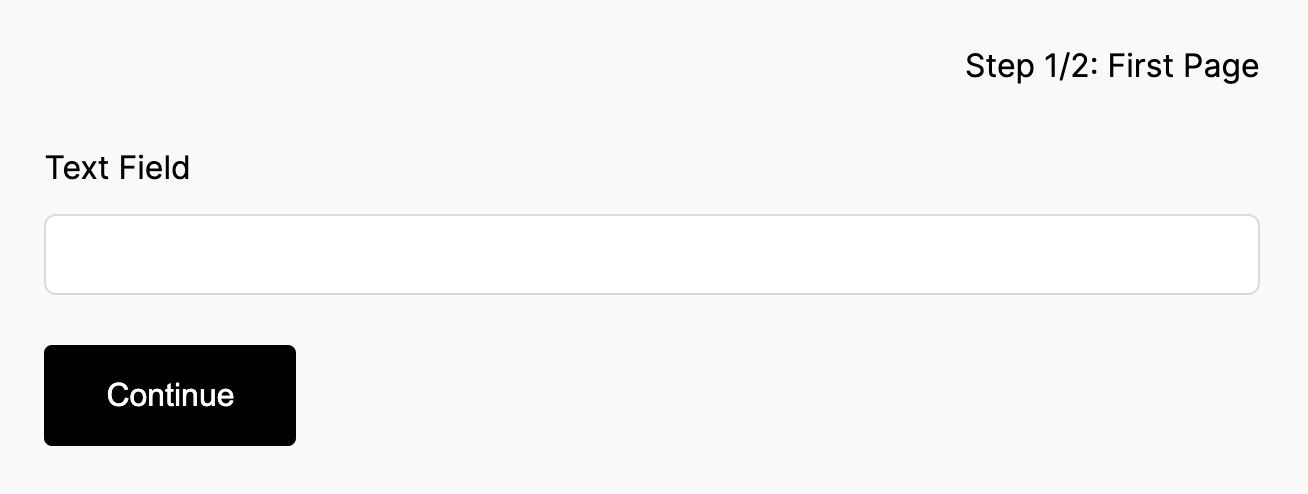
Once you click continue: