# Documentation
> Full documentation for Documentation.
---
# Introduction
> Guides for installing Happyforms, building forms, managing submissions and coupons, connecting integrations, and troubleshooting common issues.
Source: /
# Happyforms Help Center
Welcome to the Happyforms documentation. Here you'll find step-by-step guides for everything from installing the plugin to accepting payments and connecting your favorite email marketing services.
New to Happyforms? Start with [Install the plugin](/nailing-the-basics/install-the-plugin), then [add a new form](/getting-to-know-forms/add-a-new-form).
## Browse by topic
Sign in, update your account details, and manage your payment method.
Create, edit, duplicate, trash, and bulk edit your forms.
Install, register, update, and configure the Happyforms plugin.
Review, edit, filter, search, and clean up form submissions.
Create coupons and accept them in your payment forms.
Connect email marketing, payment, analytics, and automation services.
Map fields, add subscribers to lists and groups, and tag contacts.
Set up conditional logic, file uploads, signatures, multi-page forms, and more.
Fix builder loading issues, registration errors, and email delivery problems.
---
# Sign into your account
> Learn how to sign into your account in Happyforms.
Source: /your-account/sign-into-your-account
# Sign into your account
**1.** Members can access their accounts from [https://happyforms.io](https://happyforms.io).
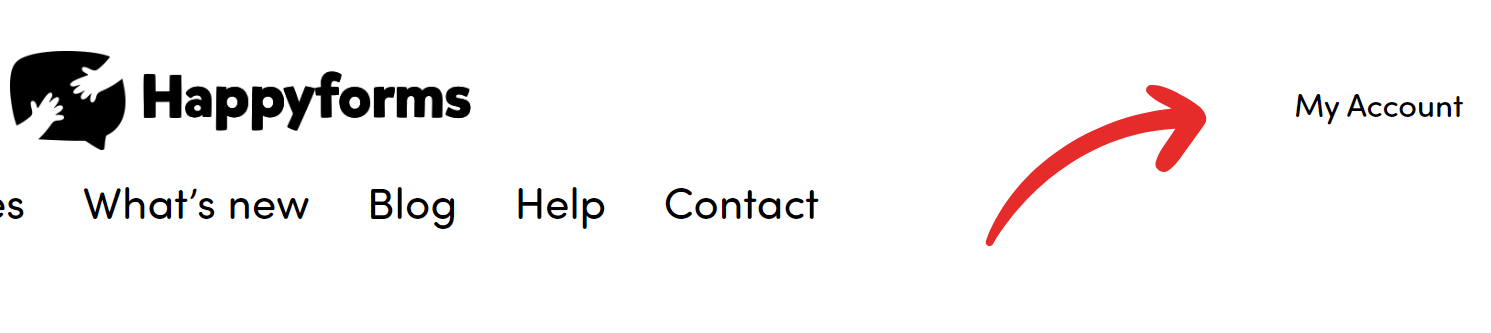
**2.** Click the **My Account** link in the top right part of the page.
**3.** Sign in to your account using a sign-in link or use a password.
---
# Change your account name, email, or password
> Learn how to change your account name, email, or password in Happyforms.
Source: /your-account/change-your-account-name-email-or-password
# Change your account name, email, or password
**1**. Sign in to your [**account**](https://happyforms.io/).
**2.** Enter your desired name, email, and password at the popup account screen.
**3.** Click the **Update your Profile** button to save the changes.
---
# Update your credit or debit card details
> Learn how to update your credit or debit card details in Happyforms.
Source: /your-account/update-your-credit-or-debit-card-details
# Update your credit or debit card details
**1.** Sign in to your [**account**](https://happyforms.io/).
**2.** Head to **Menu** → **Add a card** screen.
**3.** Click **Enter a card instead**.
**4.** Enter your card details.
**5.** Click the **Add a card** button to save the changes.
---
# Add a new form
> Learn how to add a new form in Happyforms.
Source: /getting-to-know-forms/add-a-new-form
# Add a new form
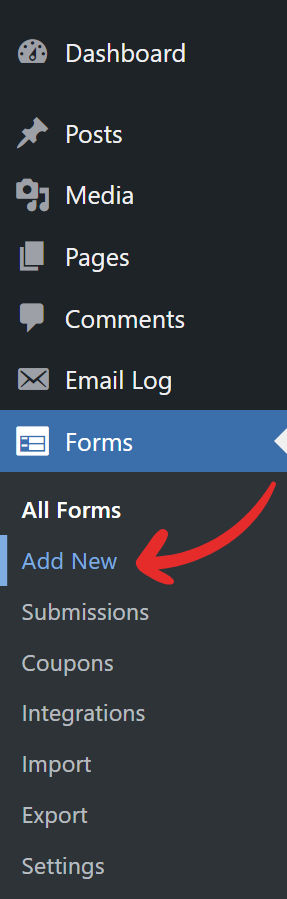
**1.** Head over to **Forms** → **Add New**. This brings up the form builder.
**2.** Start by adding a title and some fields to your forms.
**3.** Hit the **Save** button to save the changes.
---
# Edit an existing form
> Learn how to edit an existing form in Happyforms.
Source: /getting-to-know-forms/edit-an-existing-form
# Edit an existing form
**1.** Head to **Forms** → **All Forms** screen.
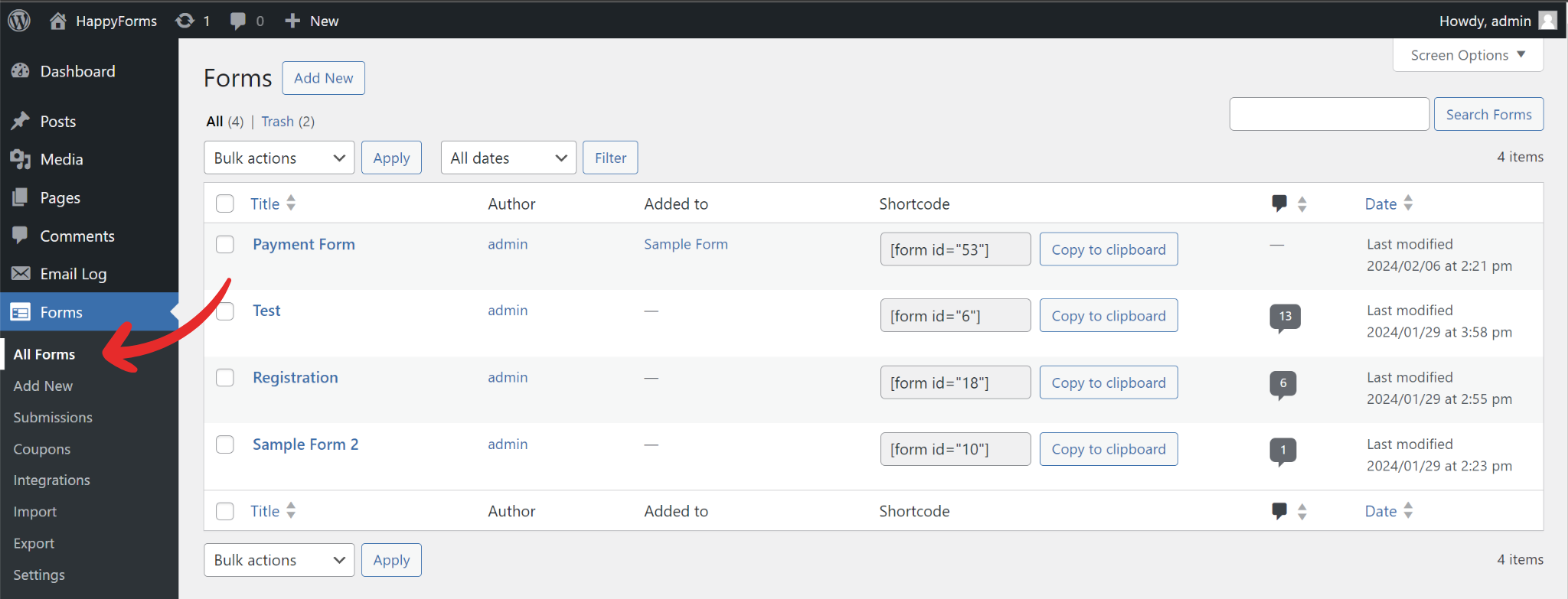
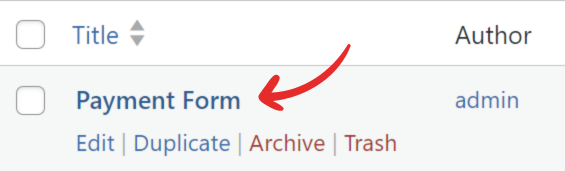
**2.** Click on the name of the form to open up the form builder.
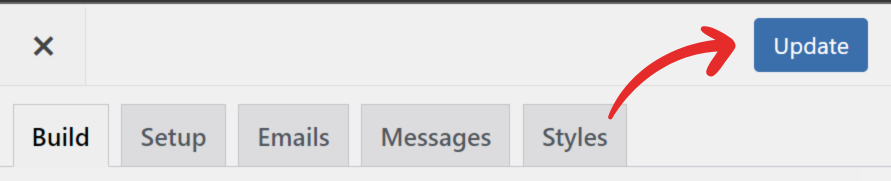
**3.** Hit the **Update** button once done editing the form.
---
# Duplicate an existing form
> Learn how to duplicate an existing form in Happyforms.
Source: /getting-to-know-forms/duplicate-an-existing-form
# Duplicate an existing form
**1.** Head to **Forms** → **All Forms** screen
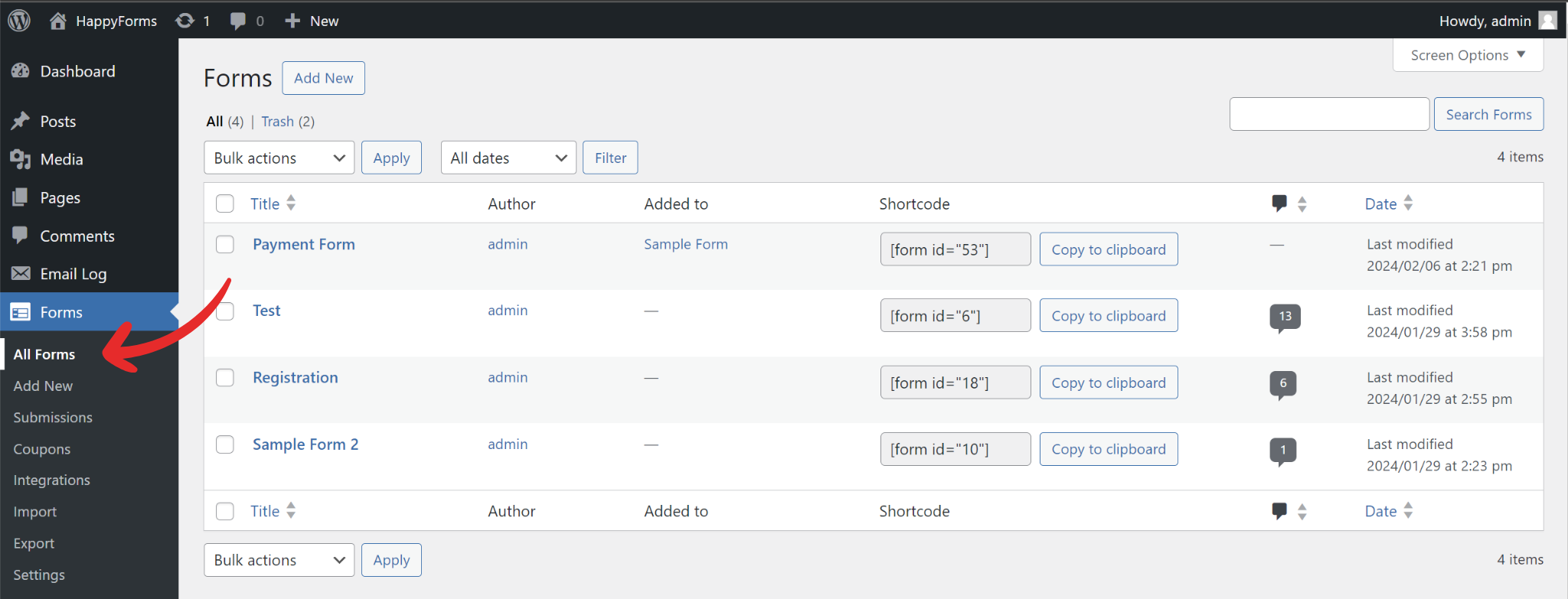
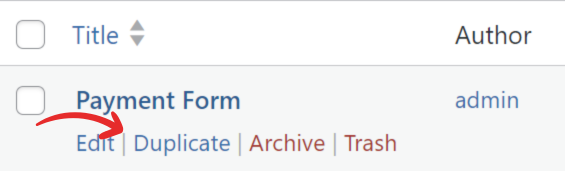
**2.** Hover over the form you want to duplicate, and a hover menu will appear below the name.
**3.** On the hover menu, click **Duplicate**.
---
# Trash a form
> Learn how to trash a form in Happyforms.
Source: /getting-to-know-forms/trash-a-form
# Trash a form
Only forms without submissions can be trashed. If the form has submissions, those should be trashed first continue with these steps.
**1.** Head to **Forms** → **All Forms** screen.
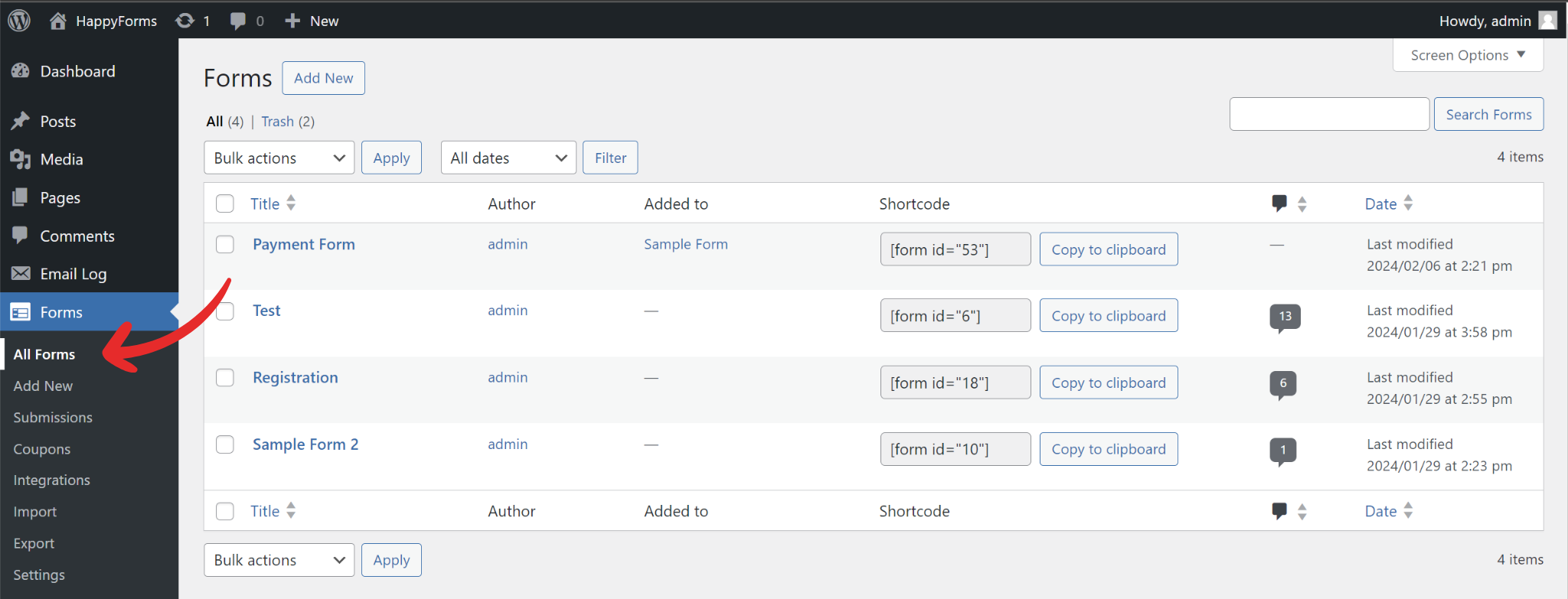
**2.** Hover over the form you want to trash.
**3.** On the hover menu, click **Trash**.
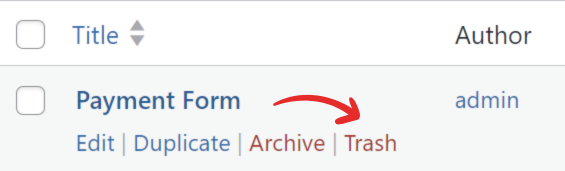
**4.** The form will be moved to **Trash**.
---
# Permanently delete a form
> Learn how to permanently delete a form in Happyforms.
Source: /getting-to-know-forms/permanently-delete-a-form
# Permanently delete a form
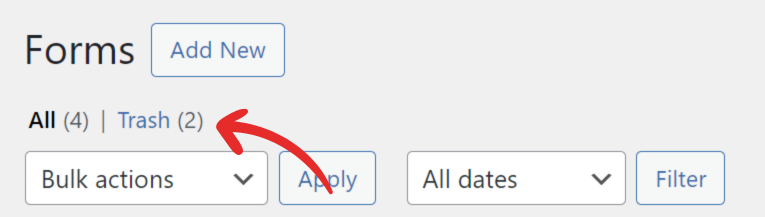
**1.** Head over to **Forms** → **All Forms** → **Trash**.
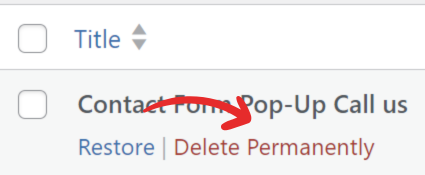
**2.** Hover over the form and click **Delete permanently**.
---
# Filter forms by date
> Learn how to filter forms by date in Happyforms.
Source: /getting-to-know-forms/filter-forms-by-date
# Filter forms by date
**1.** Head to **Forms** → **All Forms** screen.
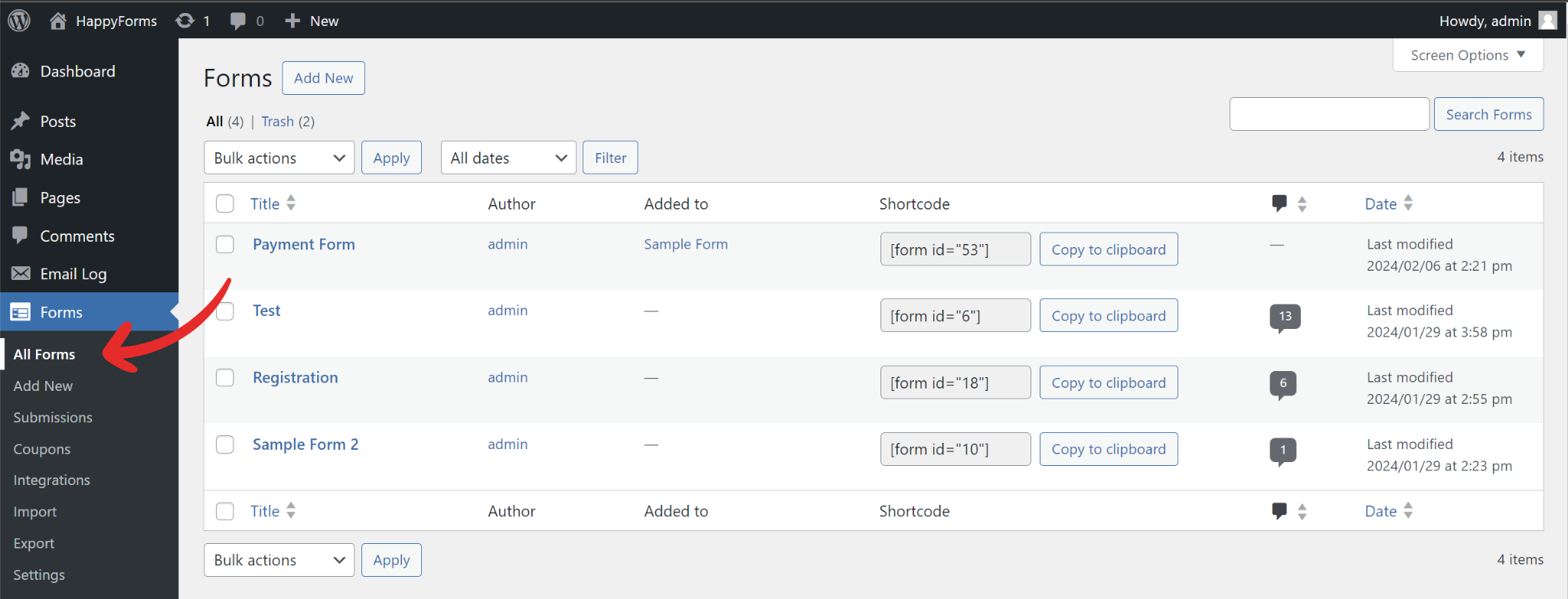
**2.** Select a date from the **All dates** dropdown.
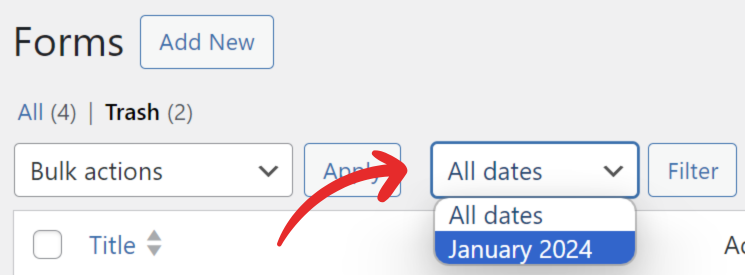
**3.** Hit the **Filter** button.
**4.** Forms will be filtered by date.
---
# Bulk edit forms
> Learn how to bulk edit forms in Happyforms.
Source: /getting-to-know-forms/bulk-edit-forms
# Bulk edit forms
**1.** Head to **Forms** → **All Forms** screen.
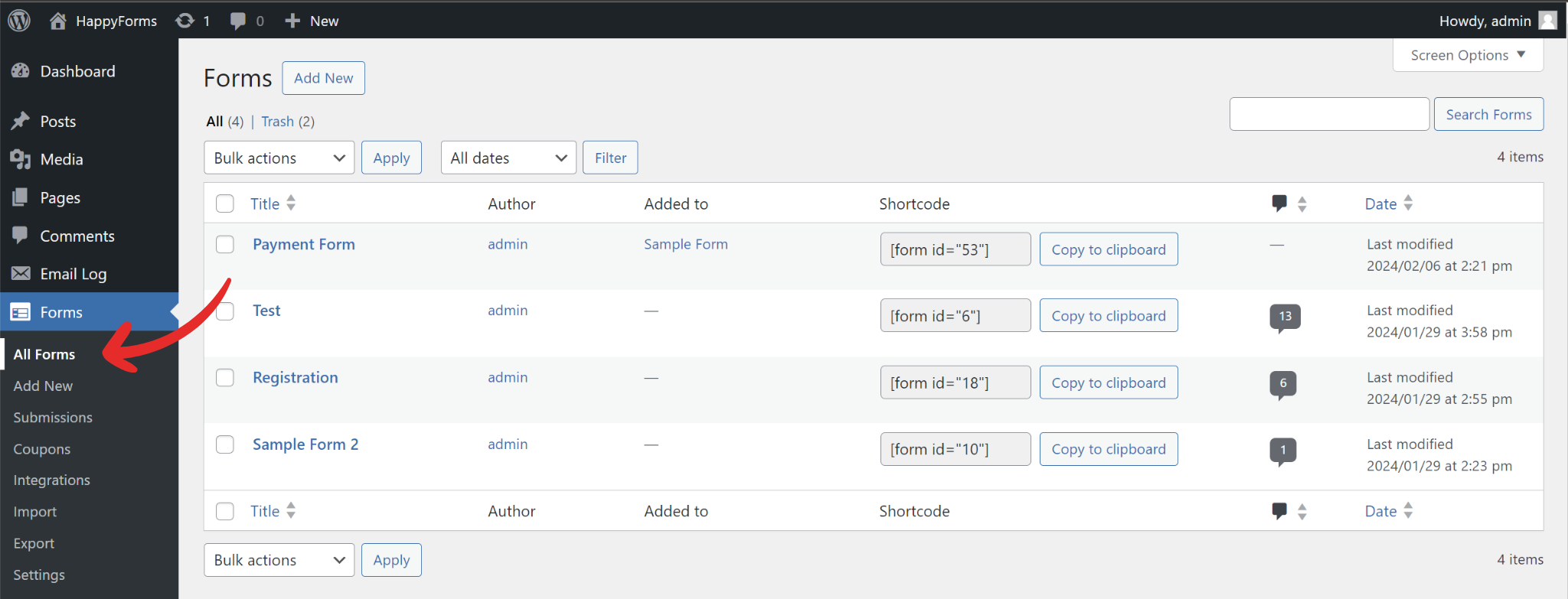
**2.** Select Forms from the list by ticking the checkboxes on the left.
**3.** Choose an action from the “Bulk actions” dropdown.
**4.** Click the **Apply** button.
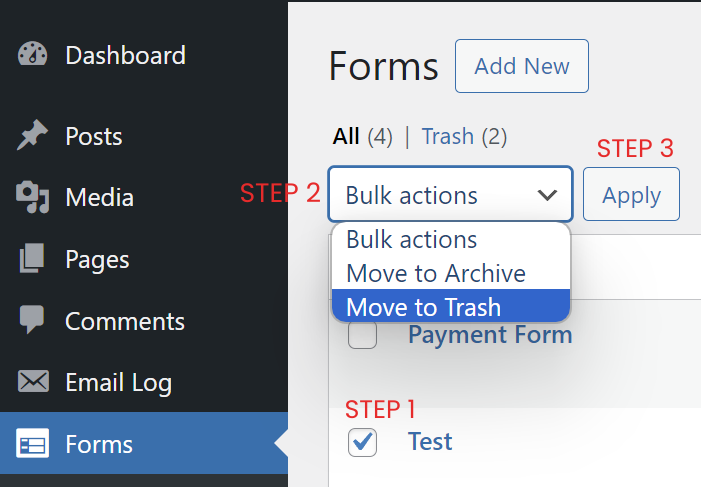
**5.** The selected action will be applied to the forms.
---
# Install the plugin
> Learn how to install the plugin in Happyforms.
Source: /nailing-the-basics/install-the-plugin
# Install the plugin
**1**. Log in to your WordPress admin dashboard.
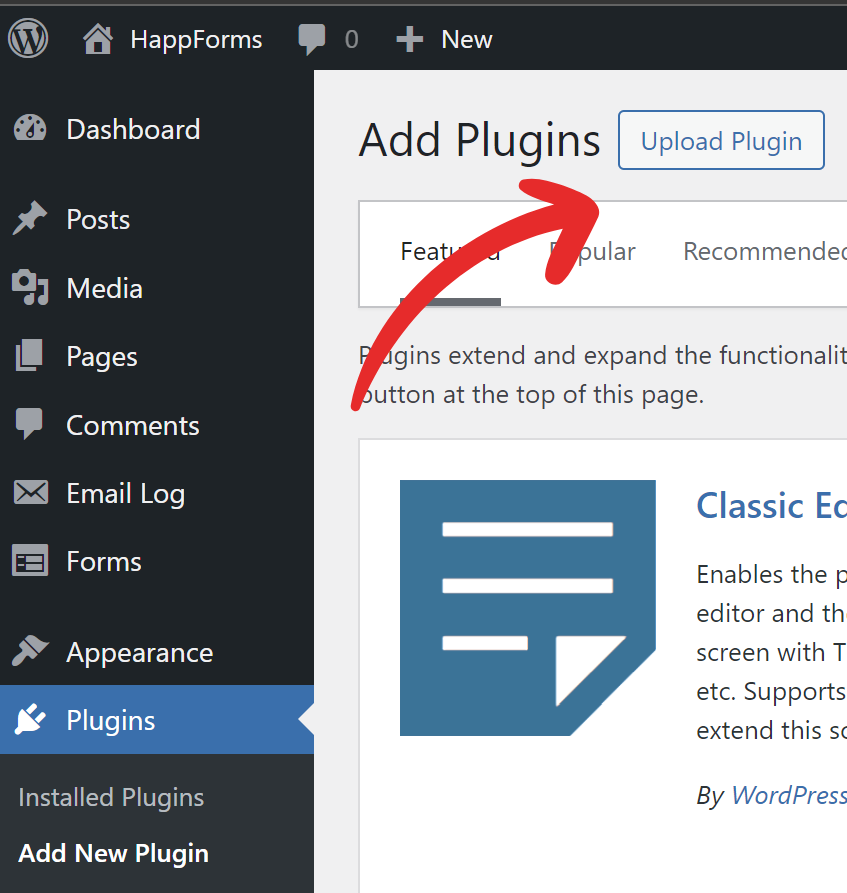
**2**. Head to **Plugins** → **Add new** screen.
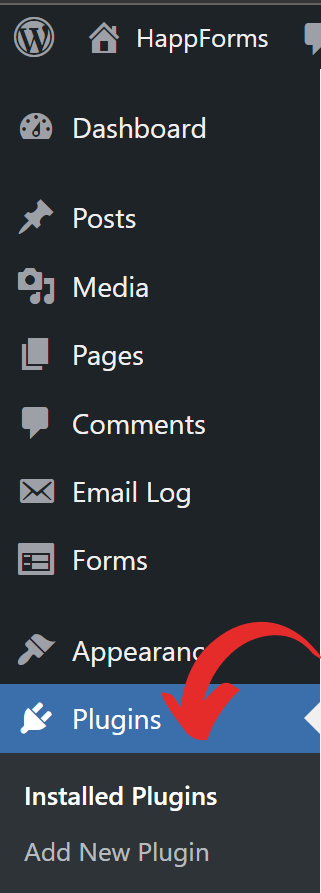
**3.** Click the **Upload plugin**.
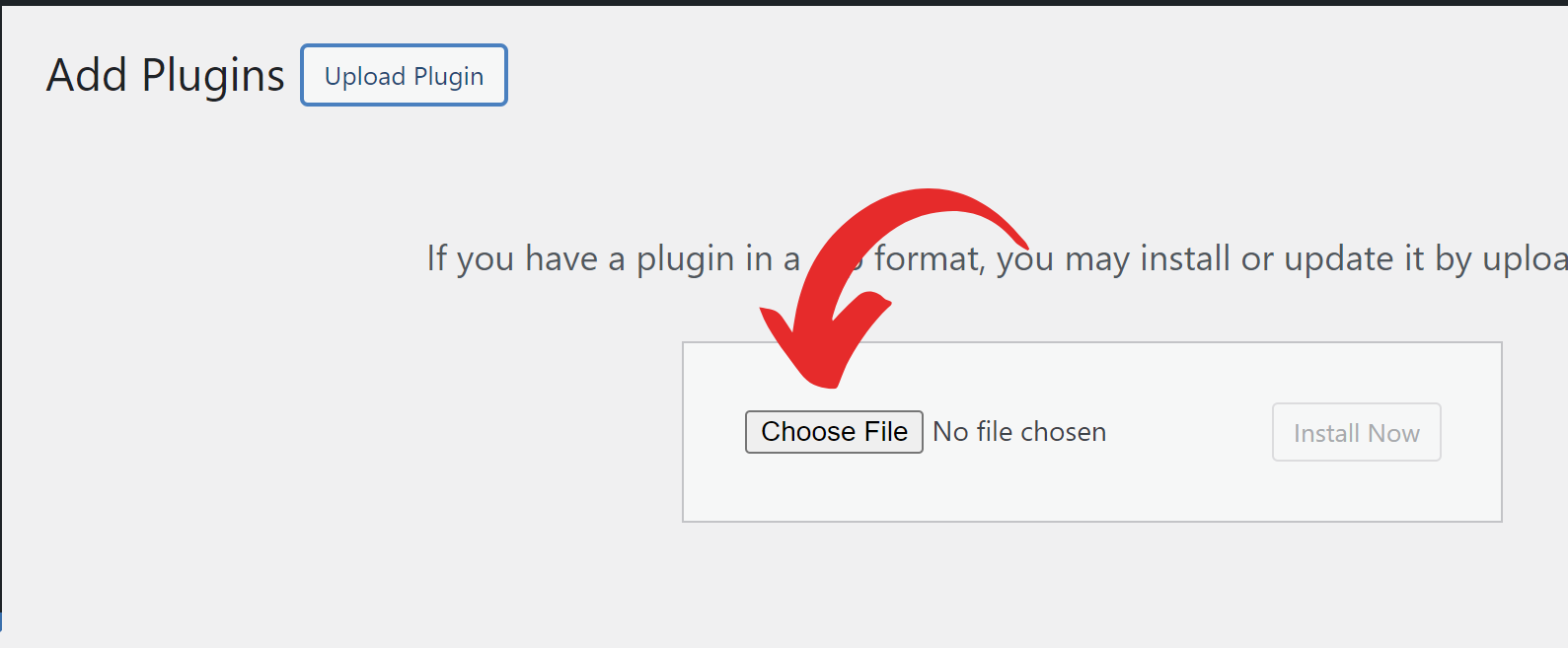
**4.** Click **Choose file** and select the plugin file from your computer.
**5.** Once installed, hit the **Activate plugin** button.
---
# Register the plugin
> Learn how to register the plugin in Happyforms.
Source: /nailing-the-basics/register-the-plugin
# Register the plugin
**1.** Head to **Forms** → **All forms** screen.
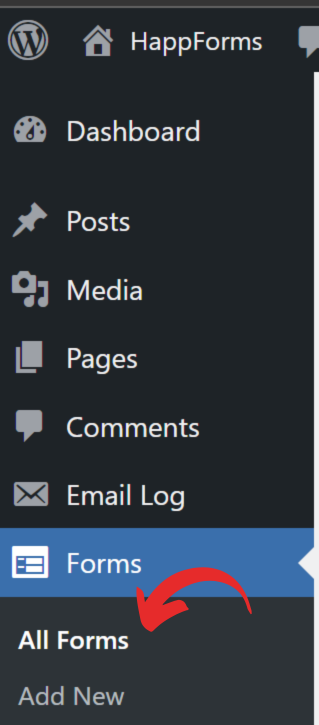
**2**. A popup will appear if you’re unregistered.
**3**. If you already have the registration key, just click the **Jump ahead** link and proceed to Step 6.
**4.** Otherwise, enter the email address connected with your Happyforms account and hit the **Send registration key**.
**5**. Copy the registration key from your email inbox.
**6.** Enter your key in the **Registration key** input field and click the **Register** button.
---
# Turn on/off the plugin's automatic updates
> Learn how to turn on/off the plugin's automatic updates in Happyforms.
Source: /nailing-the-basics/turn-on-off-the-plugins-automatic-updates
# Turn on/off the plugin's automatic updates
**1.** Head to **Plugins** → **Installed Plugins** screen.
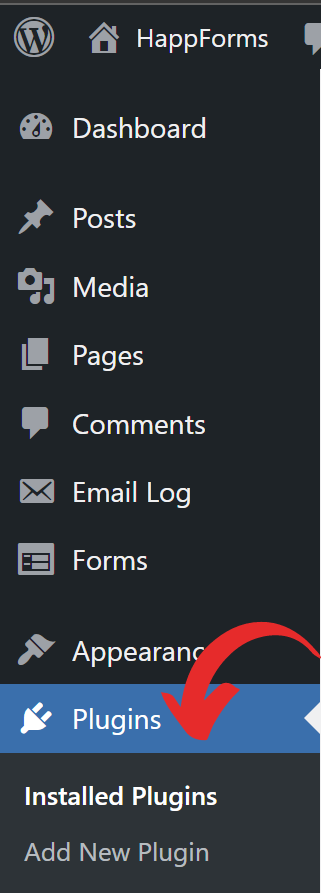
**2**. Tick the checkbox beside the Happyforms plugin.
**3**. In the **Bulk actions** dropdown, select **Enable/Disable Auto-updates**.
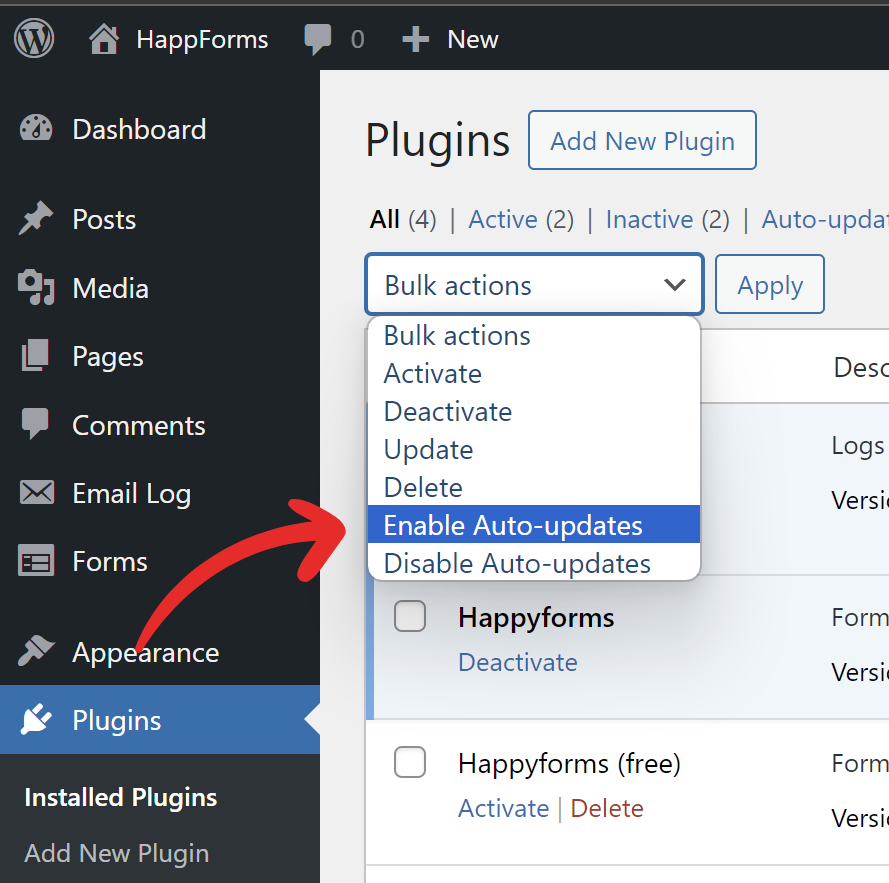
**4.** Click the **Apply** button.
---
# Check the plugin's version
> Learn how to check the plugin's version in Happyforms.
Source: /nailing-the-basics/check-the-plugins-version
# Check the plugin's version
**1.** Head to **Plugins** → **Installed Plugins** screen.
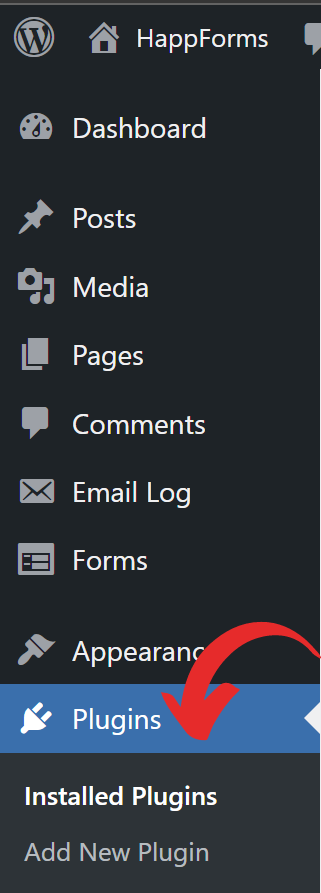
**2**. The version number is listed next to the plugin’s name.

---
# Add a form to a post, page
> Learn how to add a form to a post, page in Happyforms.
Source: /nailing-the-basics/add-a-form-to-a-post-page
# Add a form to a post, page
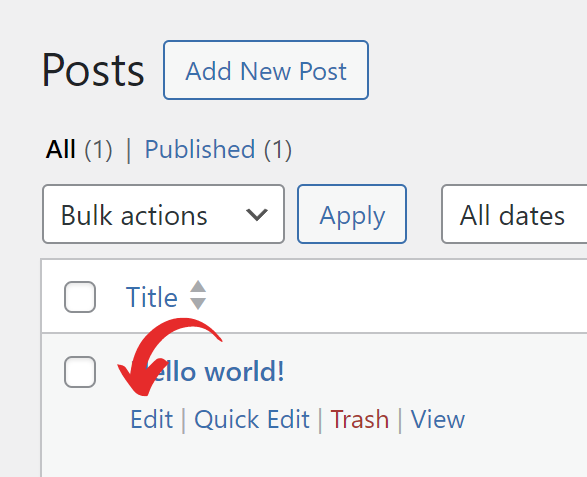
**1**. Head to the **Edit Post**/**Edit Page** screen.
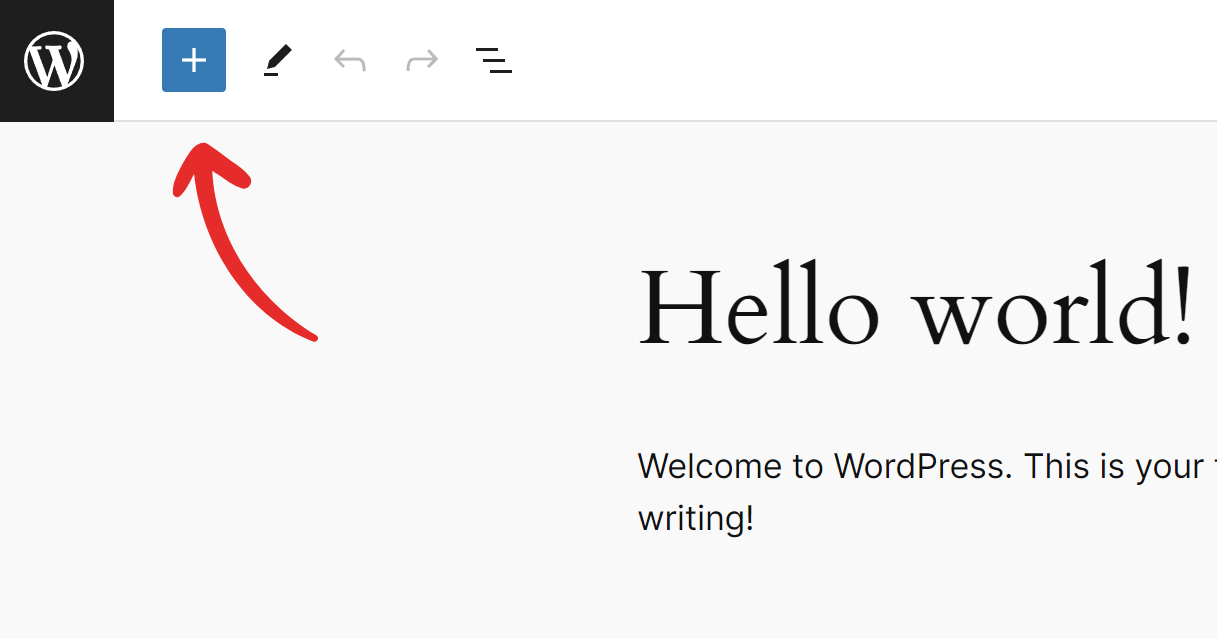
**2**. Click the Block inserter icon (+).
**3**. Search for the **Form** block and add it to your post/page.
**4**. Once added, select the form you’re going to add in the dropdown.
**5**. Hit the **Insert** button.
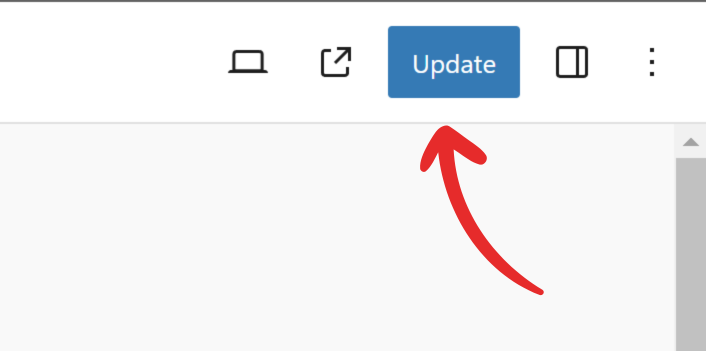
**6**. Click the **Publish**/**Update** button to save the changes.
---
# Remove a form from a post, page, or template
> Learn how to remove a form from a post, page, or template in Happyforms.
Source: /nailing-the-basics/remove-a-form-from-a-post-page-or-template
# Remove a form from a post, page, or template
**1.** Head to **Edit Post**/**Edit Page** screen.
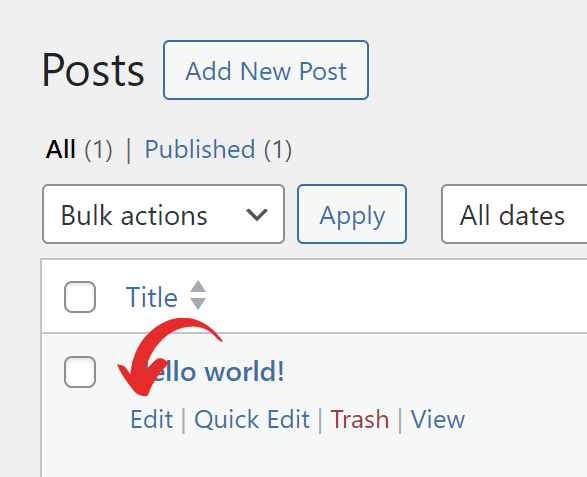
**2.** Click for the form block you’re going to delete.
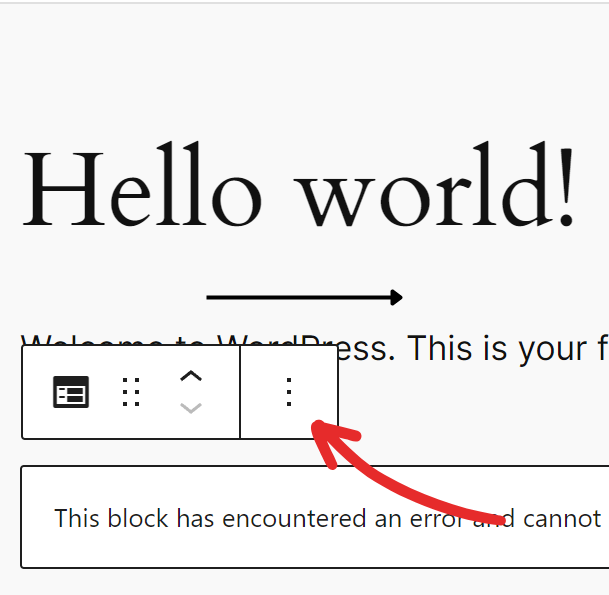
**3.** Click on more options (three dots).
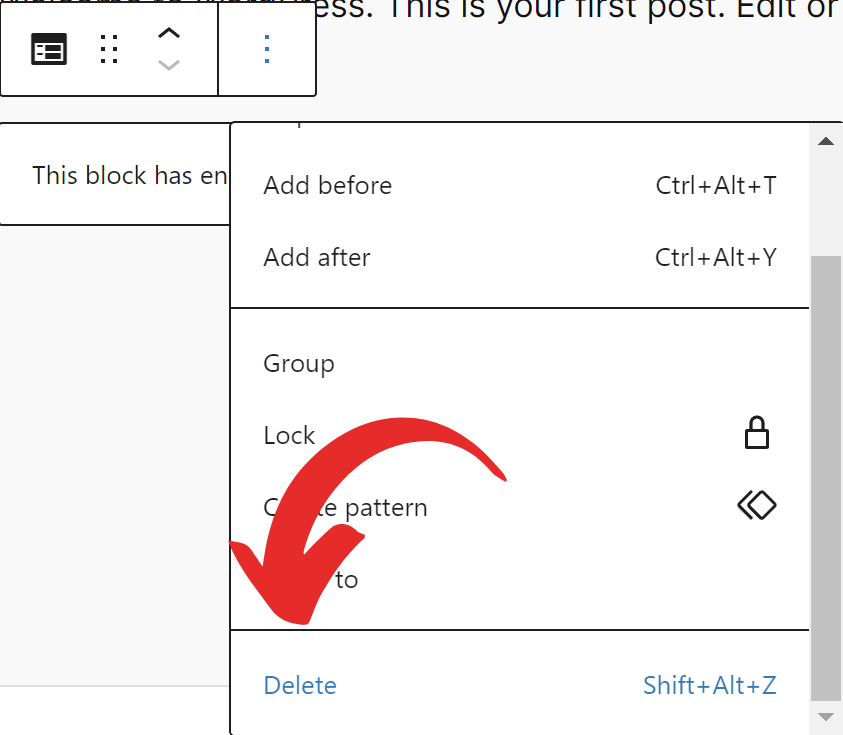
**4**. Click **Remove Forms**.
**5.** Click the **Publish**/**Update** button to save the changes.
---
# Import a form
> Learn how to import a form in Happyforms.
Source: /nailing-the-basics/import-a-form
# Import a form
**1**. On your WordPress admin dashboard, head to **Forms** → **Import**.
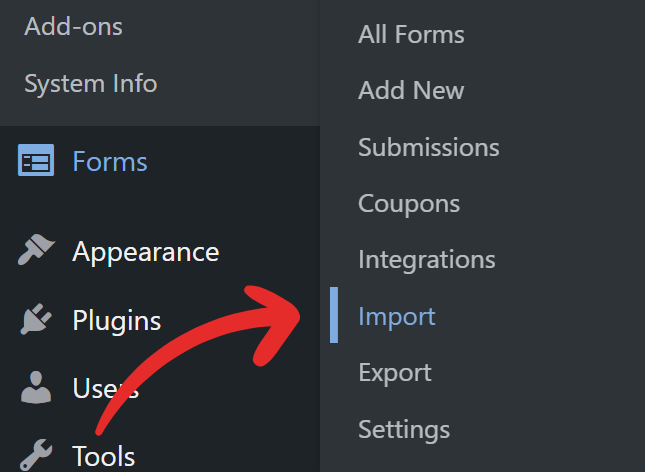
**2**. Click **Choose file** and select the form (.xml) file from your computer.
**3**. Click **Upload file and import**.
---
# Export a form
> Learn how to export a form in Happyforms.
Source: /nailing-the-basics/export-a-form
# Export a form
**1.** On your WordPress admin dashboard, head to **Forms** → **Export** screen.
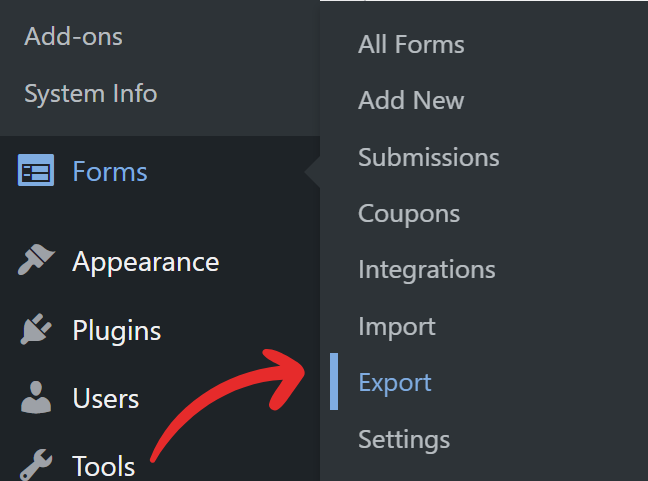
**2.** Under **Choose what to export**, choose **Forms**.
**3.** Select the form you want to export from the **Forms** dropdown.
**4.** Click **Download Export File**.
---
# Set user role capabilities
> Learn how to set user role capabilities in Happyforms.
Source: /nailing-the-basics/set-user-role-capabilities
# Set user role capabilities
**1.** Head to **Forms** → **Settings** screen.
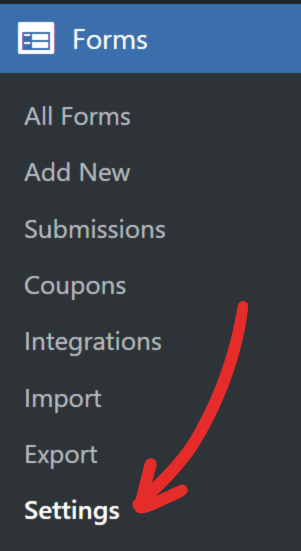
**2.** Expand the **Role Capabilities** section.
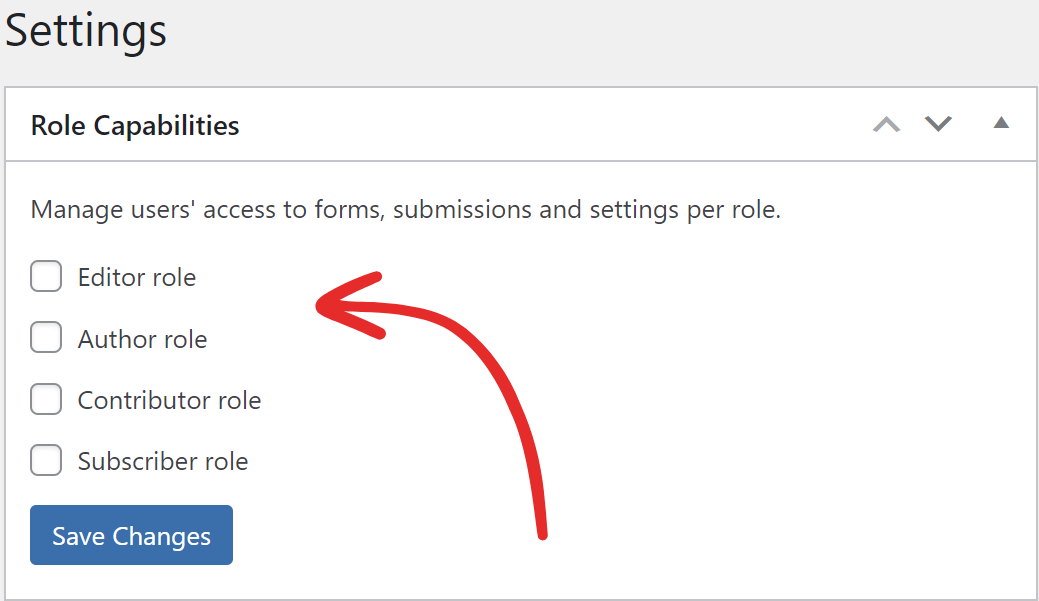
**3.** Tick the checkbox beside the role that you want to give access to.
**4.** Select which sections you want the role to have access to.
**5.** Click **Save Changes** to save the changes.
---
# Delete the plugin
> Learn how to delete the plugin in Happyforms.
Source: /nailing-the-basics/delete-the-plugin
# Delete the plugin
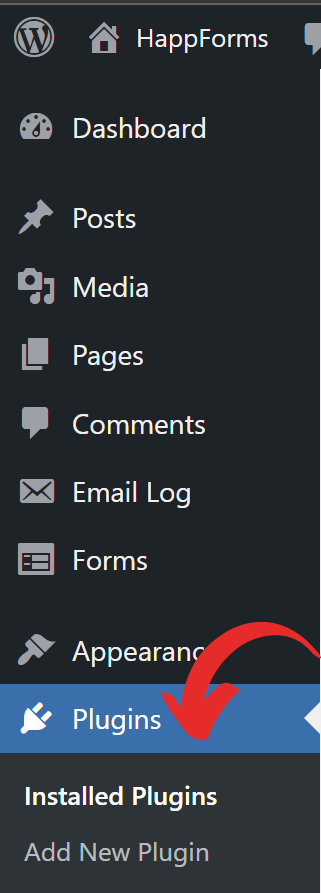
**1.** Head to **Plugins** → **Installed Plugins** screen.
**2.** Click **Deactivate** on the plugin that you want to uninstall.
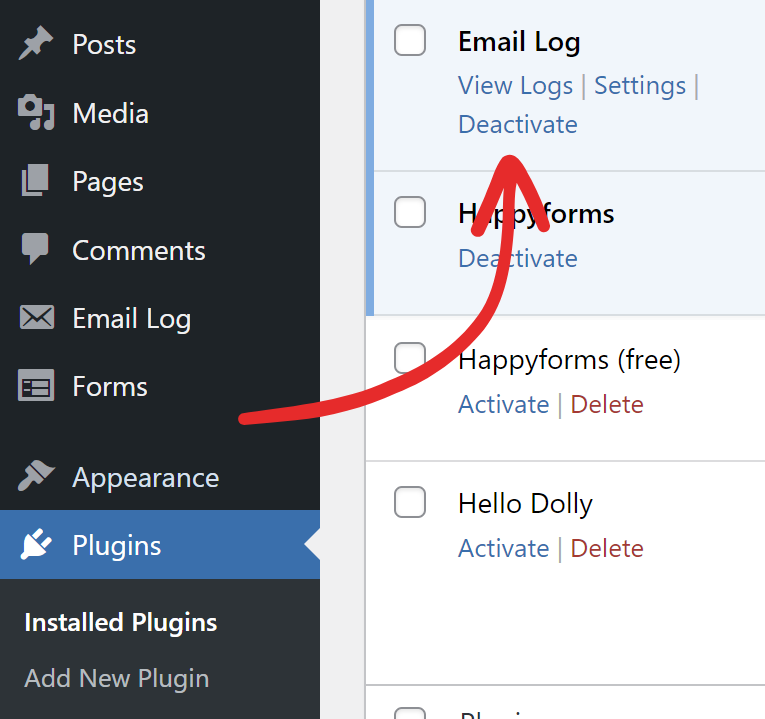
**3.** Hit the Delete button**,** and click **OK** in the popup.
---
# Mark a submission read/unread
> Learn how to mark a submission read/unread in Happyforms.
Source: /handling-submissions/mark-a-submission-read-unread
# Mark a submission read/unread
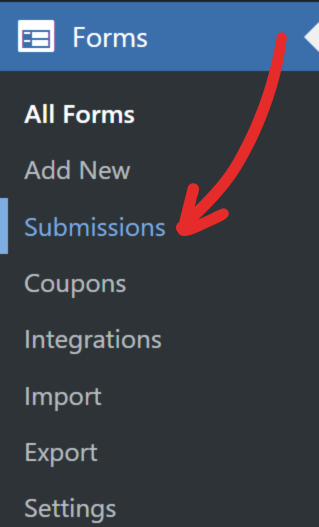
**1.** Head to **Forms** → **Submissions** screen.
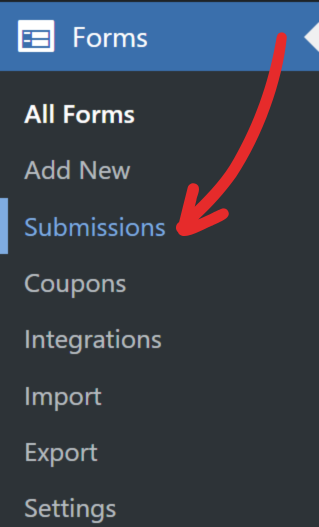
**2.** Hover over the submission you want to mark, a hover menu will appear.
**3.** On the hover menu, click **Mark as Read**/**Unread**.
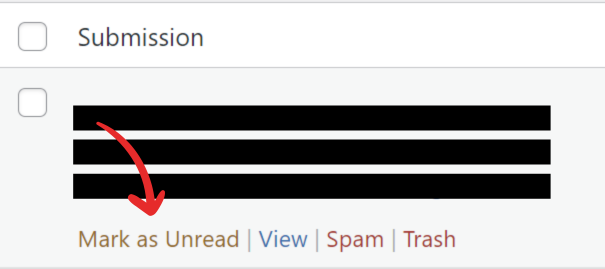
**4.** Any unread submission is highlighted with a yellow background.
---
# Mark a submission as spam
> Learn how to mark a submission as spam in Happyforms.
Source: /handling-submissions/mark-a-submission-as-spam
# Mark a submission as spam
**1.** Head to **Forms** → **Submissions** screen.
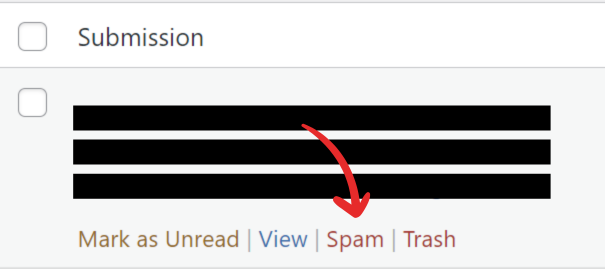
**2.** Hover over the submission you want to mark, a hover menu will appear.
**3.** On the hover menu, click **Spam**.
---
# Trash a submission
> Learn how to trash a submission in Happyforms.
Source: /handling-submissions/trash-a-submission
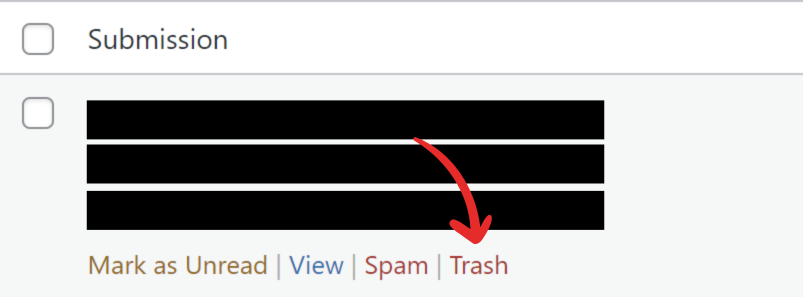
# Trash a submission
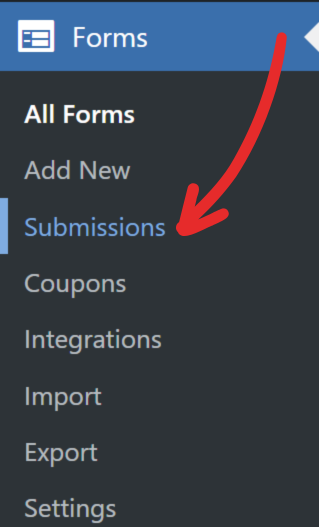
**1.** Head to **Forms** → **Submissions** screen.
**2.** Hover over the submission you want to trash.
**3.** On the hover menu, click **Trash**.
---
# Permanently delete a submission
> Learn how to permanently delete a submission in Happyforms.
Source: /handling-submissions/permanently-delete-a-submission
# Permanently delete a submission
**1.** Head to **Forms** → **Submissions** screen.
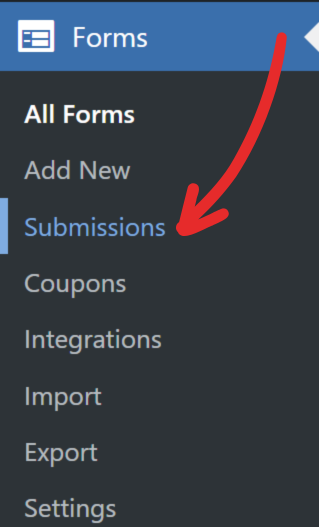
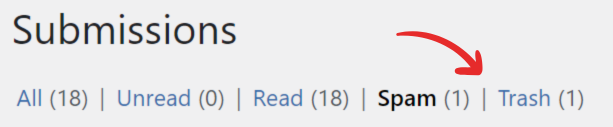
**2.** Click on the **Trash** link at the top of the page.
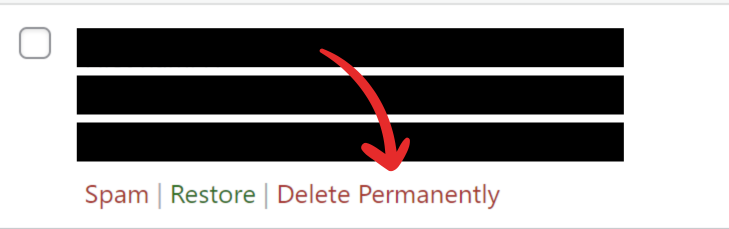
**3.** Hover over the submission you want to delete.
**4.** On the hover menu, click **Delete Permanently**.
---
# Restore a spammed or trashed submission
> Learn how to restore a spammed or trashed submission in Happyforms.
Source: /handling-submissions/restore-a-spammed-or-trashed-submission
# Restore a spammed or trashed submission
**1.** Head to **Forms** → **Submissions** screen.
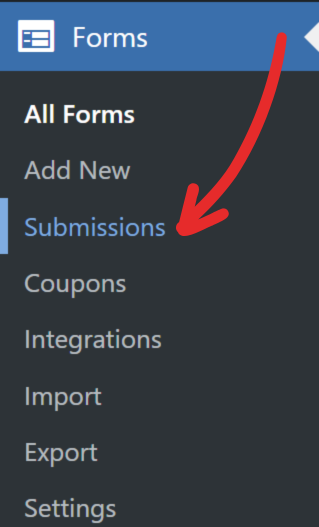
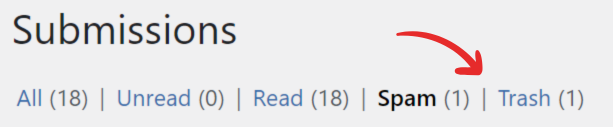
**2.** Click on the **Spam**/**Trash** link at the top of the page.
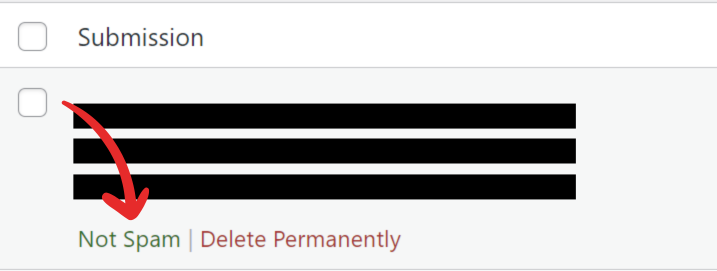
**3.** Hover over the submission you want to restore.
**4.** On the hover menu, click **Not Spam**/**Restore**.
---
# Edit a submission
> Learn how to edit a submission in Happyforms.
Source: /handling-submissions/edit-a-submission
# Edit a submission
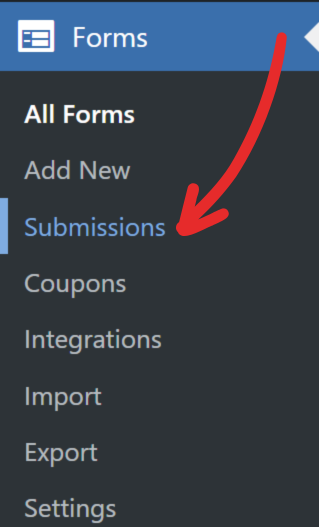
**1.** Head to **Forms** → **Submissions** screen.
**2.** Hover over the submission you want to edit.
**3.** On the hover menu, click on the **View** link.
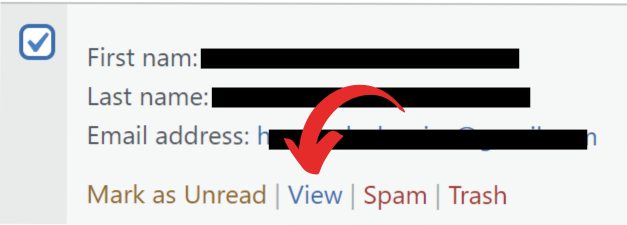
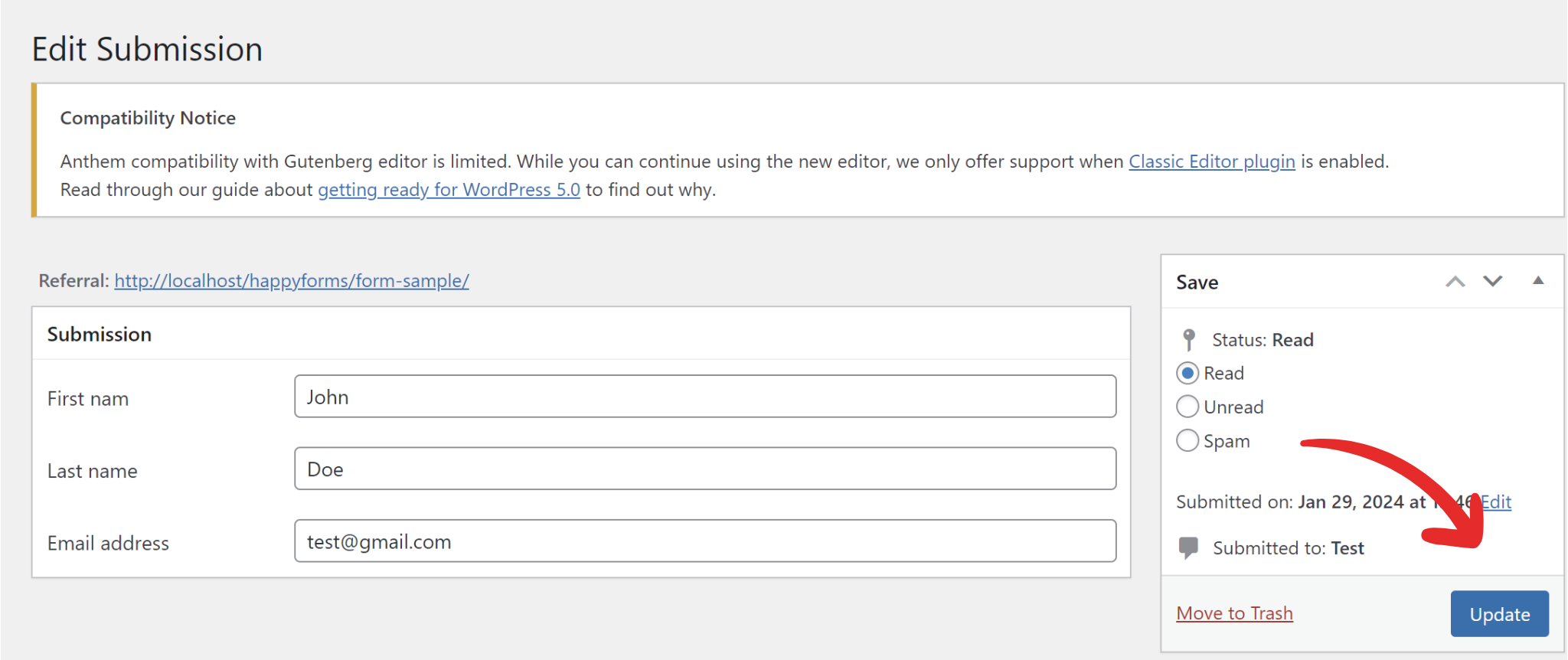
**4.** This brings up the **Edit Submission** screen.
**5.** Once done editing, click the **Update** button to save the changes.
---
# Change a submission date
> Learn how to change a submission date in Happyforms.
Source: /handling-submissions/change-a-submission-date
# Change a submission date
**1.** Head to **Forms** → **Submissions** screen.
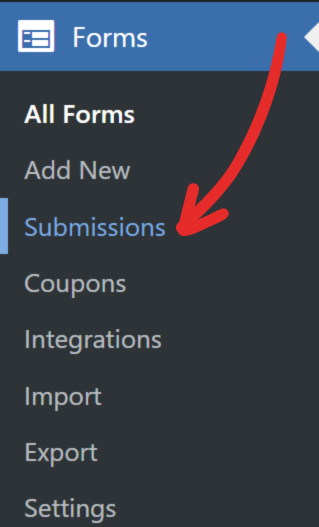
**2.** Hover over the submission whose submission date you want to change.
**3.** On the hover menu, click on the **View** link to edit the submission.
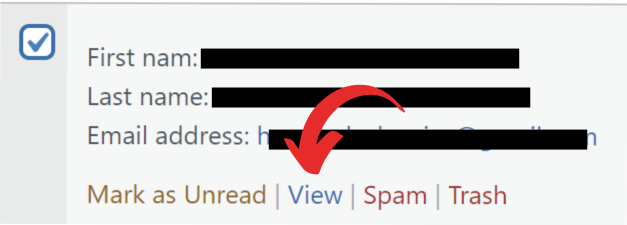
**4.** Click the **Edit** link beside the date that’s in the **Save** meta box that’s located on the right sidebar of the screen.
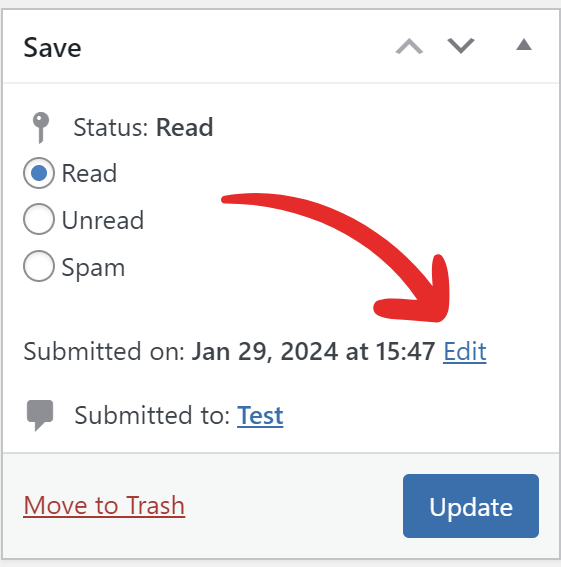
**5.** Select the date you want, then press **Ok** once done.
**6.** Click the **Update** button to save the changes.
---
# Bulk edit submissions
> Learn how to bulk edit submissions in Happyforms.
Source: /handling-submissions/bulk-edit-submissions
# Bulk edit submissions
**1.** Head to **Forms** → **Submissions** screen.
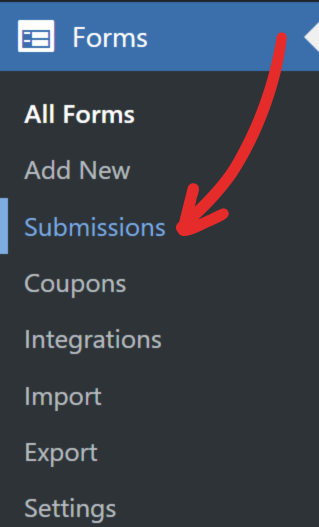
**2.** Select submissions from the list by ticking the checkboxes on the left.
**3.** Choose an action from the **Bulk actions** dropdown.
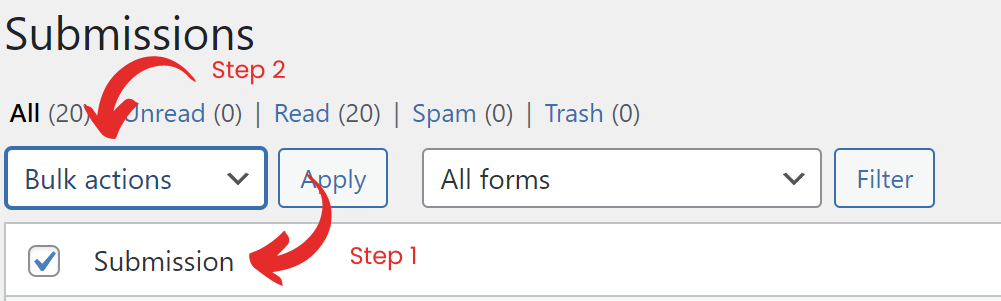
**4.** Click the **Apply** button.
**5.** The selected action will be applied to the submissions.
---
# Filter submissions by form
> Learn how to filter submissions by form in Happyforms.
Source: /handling-submissions/filter-submissions-by-form
# Filter submissions by form
**1.** Head to **Forms** → **Submissions** screen.
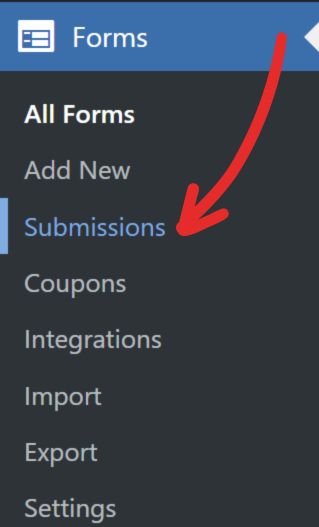
**2.** Select a form name from the **All Forms** dropdown at the top of the page.
**3.** Click the **Filter** button.
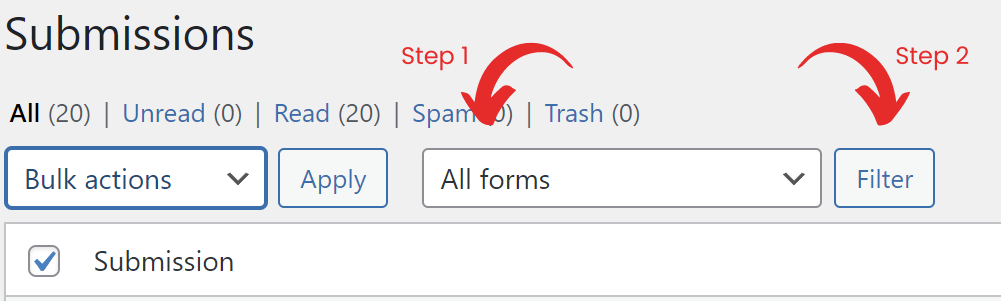
**4.** Only submissions from the selected Form will be shown.
---
# Search submissions by keyword
> Learn how to search submissions by keyword in Happyforms.
Source: /handling-submissions/search-submissions-by-keyword
# Search submissions by keyword
**1.** Head to **Forms** → **Submissions** screen.
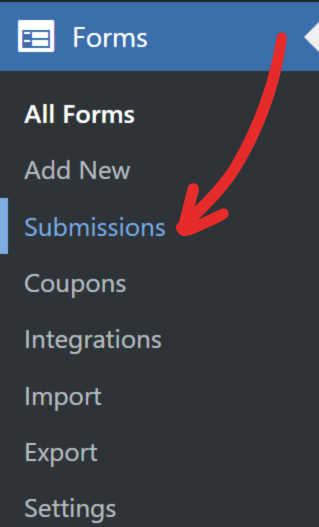
**2.** Fill in a search keyword in the upper right input field.
**3.** Hit the **Search Submissions** button.
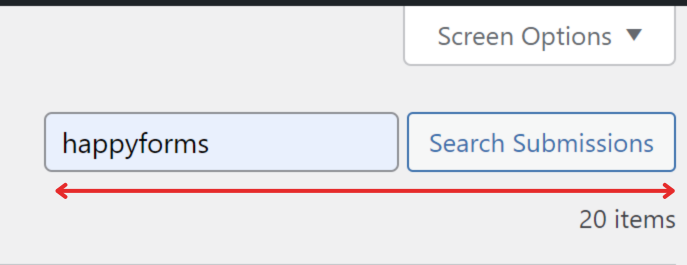
**4.** Submissions will be displayed based on the searched keyword.
---
# Add a new coupon
> Learn how to add a new coupon in Happyforms.
Source: /managing-coupons/add-a-new-coupon
# Add a new coupon
**1.** Head to **Forms** → **Coupons** screen.
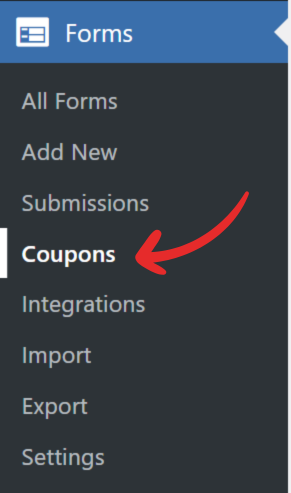
**2.** Fill up the **Add New Coupon** form.
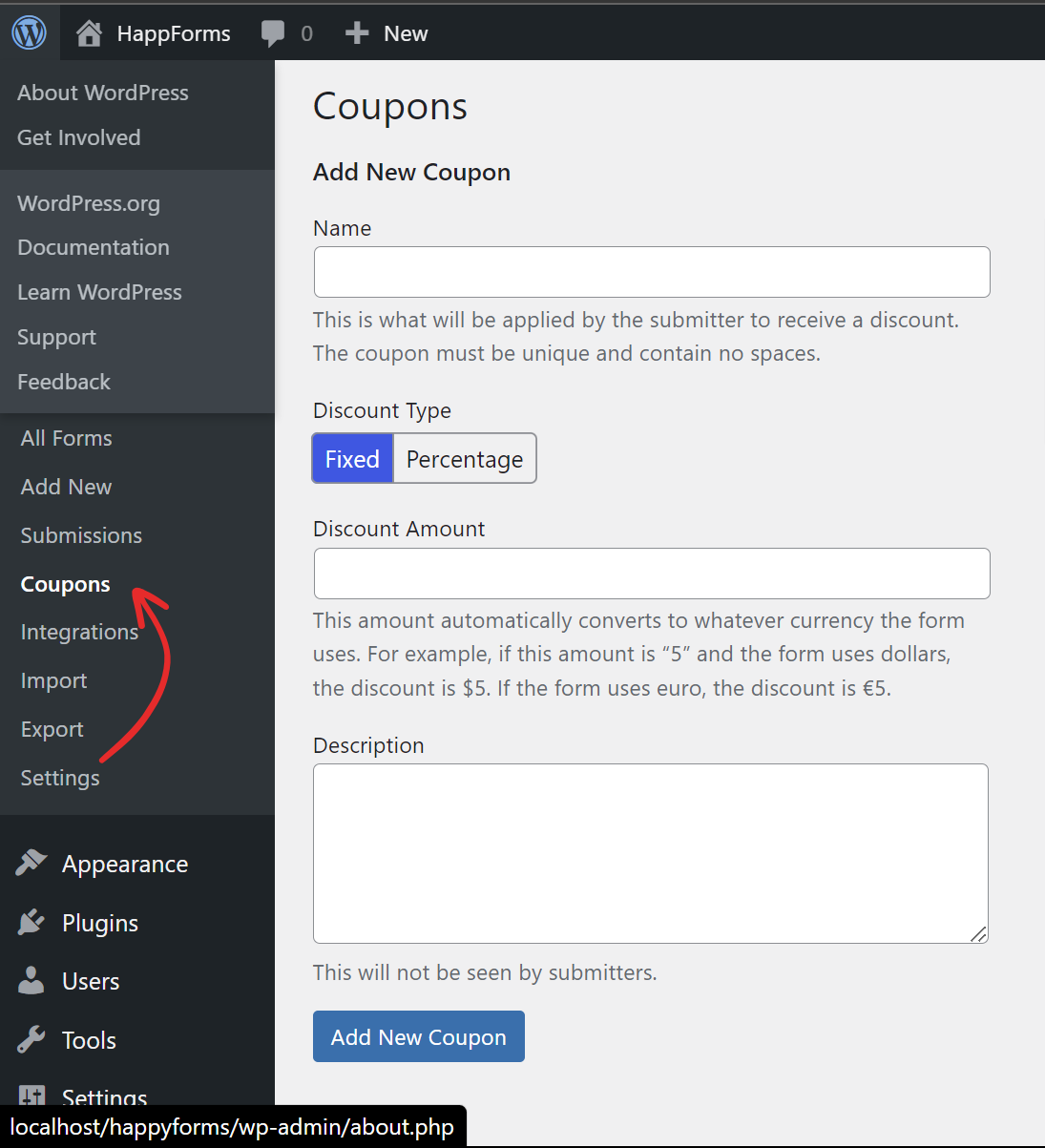
**3.** Hit the **Add New Coupon** once done.
---
# Accept coupons in a form
> Learn how to accept coupons in a form in Happyforms.
Source: /managing-coupons/accept-coupons-in-a-form
# Accept coupons in a form
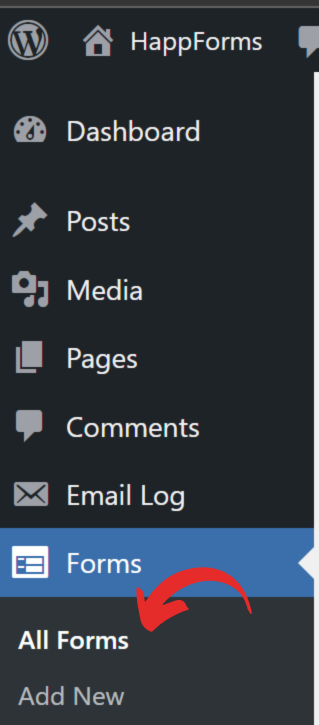
**1.** Head to **Forms** → **All Forms** screen and edit your form.
**2.** Go to the **Build** tab and expand your **Payment** field.
**3.** Tick the **Accept Coupon** checkbox.
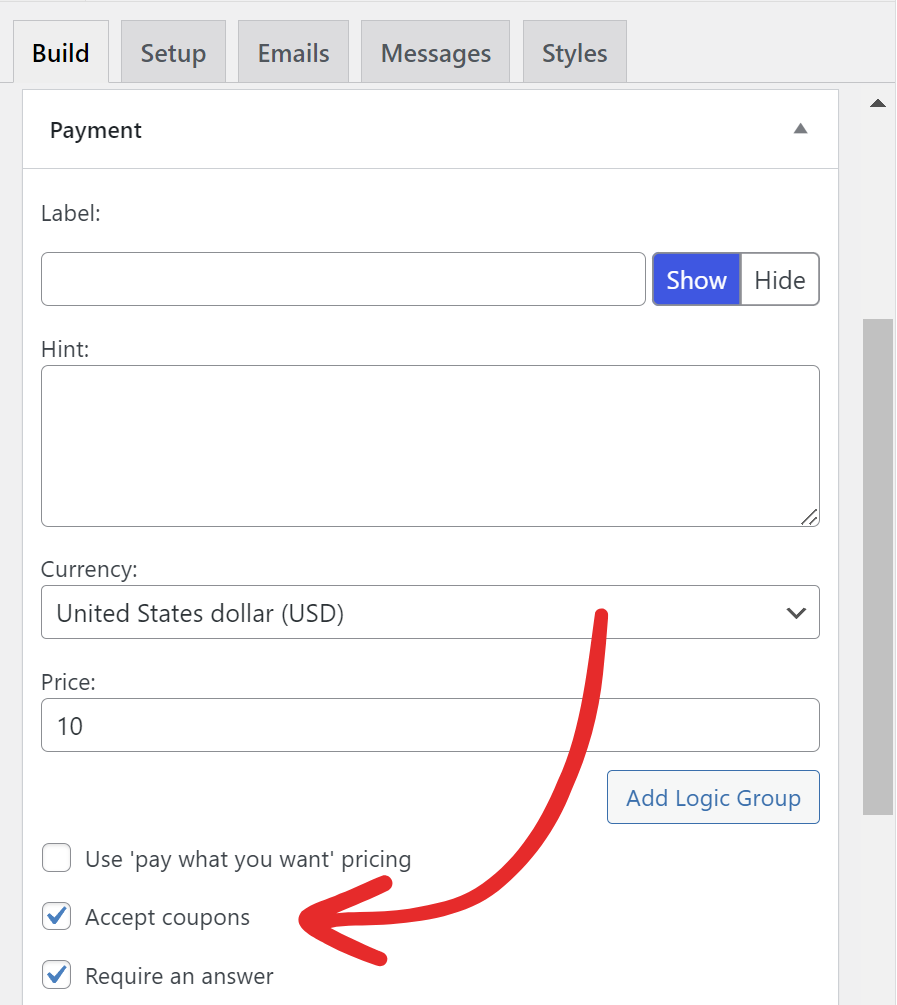
**4.** Click the **Update** button to save the changes.
---
# Edit an existing coupon
> Learn how to edit an existing coupon in Happyforms.
Source: /managing-coupons/edit-an-existing-coupon
# Edit an existing coupon
**1.** Head to **Forms** → **Coupons** screen.
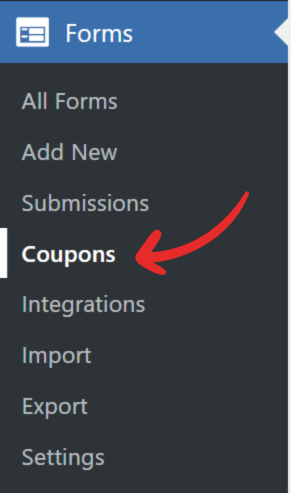
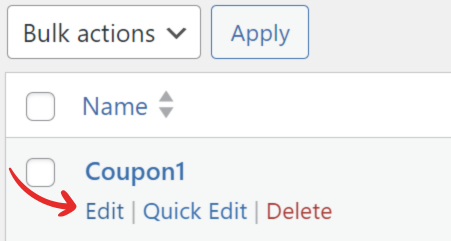
**2.** Click the name of the coupon or the **Edit** link from the hover menu.
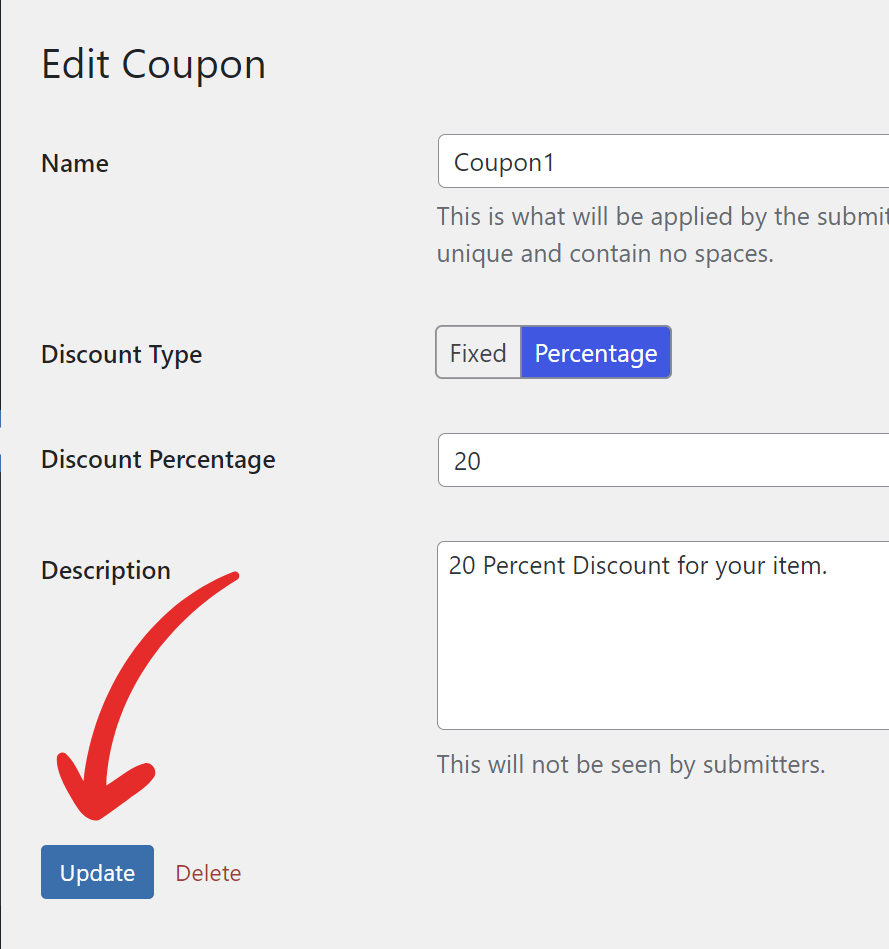
**3.** Make the necessary changes at the **Edit Coupon** screen.
**4.** Click the **Update** button to save changes.
---
# Delete an existing coupon
> Learn how to delete an existing coupon in Happyforms.
Source: /managing-coupons/delete-an-existing-coupon
# Delete an existing coupon
**1.** Head to **Forms** → **Coupons** screen.
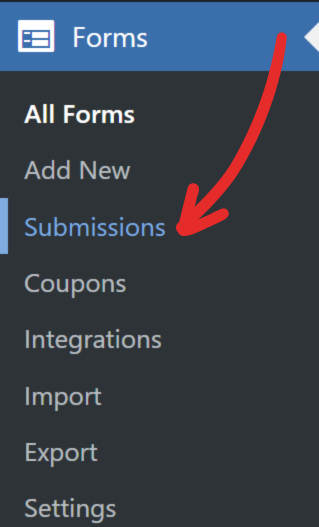
**2.** Hover over the coupon you want to delete.
**3.** On the hover menu, click **Delete**.
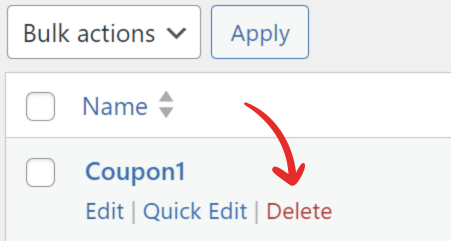
**4.** Press **OK** at the pop-up to confirm the deletion of the coupon.
---
# Mailchimp integration
> Connect Happyforms with Mailchimp.
Source: /integrations/mailchimp-integration
# Mailchimp integration
1. Follow [**this guide**](https://mailchimp.com/help/about-api-keys/#Find_or_Generate_Your_API_Key) to generate a Mailchimp API key.
2. Head to **Forms** → **Integrations** screen.
3. Paste your key to the **API key** field in the Mailchimp widget.
4. Click **Save Changes**.
---
# AWeber integration
> Connect Happyforms with AWeber.
Source: /integrations/aweber-integration
# AWeber integration
1. Head to **Forms** → **Integrations** screen.
2. Click **Get your code** in the **AWeber** widget to open the AWeber authentication screen.
3. Authenticate with your AWeber credentials to obtain your verification code.
4. Copy your **verification code** to your clipboard and close the browser tab.
5. Back in the **AWeber** widget, paste your verification code in the **Verification** **code** field.
6. Click **Save Changes**.
---
# ActiveCampaign integration
> Connect Happyforms with ActiveCampaign.
Source: /integrations/activecampaign-integration
# ActiveCampaign integration
1. Follow this [**guide**](https://help.activecampaign.com/hc/en-us/articles/207317590-Getting-started-with-the-API#how-to-obtain-your-activecampaign-api-url-and-key) to obtain your API URL and API Key.
2. Paste your **API URL** and **API key** into the **ActiveCampaign** widget.
3. Click **Save Changes** to activate your integration.
---
# Constant Contact integration
> Connect Happyforms with Constant Contact.
Source: /integrations/constant-contact-integration
# Constant Contact integration
1. Create a developer account, then create an app as outlined in this [**guide**](https://v3.developer.constantcontact.com/api_guide/getting_started.html).
2. Configure your application Redirect URI to your site address followed by `/wp-admin/?happyforms-oauth=constant-contact`. Like this: `https://myawesomesite.com/wp-admin/?happyforms-oauth=constant-contact`
---
# ConvertKit integration
> Connect Happyforms with ConvertKit.
Source: /integrations/convertkit-integration
# ConvertKit integration
1. Access your [**ConvertKit dashboard.**](https://app.convertkit.com/)
2. Click **Account Settings** in the user menu.
3. Copy the value of the **API Key** input.
4. Paste this value to **API key** field in the **ConvertKit** widget.
5. Click **Save Changes**.
---
# Drip integration
> Connect Happyforms with Drip.
Source: /integrations/drip-integration
# Drip integration
1. Access your [**Drip dashboard**](https://www.getdrip.com/dashboard).
2. Click **Settings** → **User info**.
3. Copy the value of the **API Token** input.
4. Head to **Forms** → **Integrations** screen.
5. Paste this value to **API key** field in the **Drip** widget.
6. Click **Save Changes**.
---
# MailerLite integration
> Connect Happyforms with MailerLite.
Source: /integrations/mailerlite-integration
# MailerLite integration
1. Head over to the **Integrations** screen in your [**MailerLite dashboard**](https://app.mailerlite.com/integrations/api/).
2. Copy the value of the **API key** input.
3. Paste this key to **API key** field in the **MailerLite** widget.
4. Click **Save Changes**.
---
# SendFox integration
> Connect Happyforms with SendFox.
Source: /integrations/sendfox-integration
# SendFox integration
1. Go to **Settings** → **API screen** in the SendFox dashboard.
2. In the **Personal Access Tokens** section, click **Create New Token**.
3. Enter **Happyforms** for the token name, then click **Create**.
4. Copy the token and paste it to the Personal access token field in the **SendFox** widget.
5. Click **Save Changes**.
---
# SendGrid integration
> Connect Happyforms with SendGrid.
Source: /integrations/sendgrid-integration
# SendGrid integration
1. Navigate to **Settings** → **API Keys** screen in the [**SendGrid dashboard**](https://app.sendgrid.com/settings/api_keys).
2. Click **Create API Key**, then fill in the **API Key Name** so you can later identify it.
3. Click **Create & View**.
4. Copy the API key and click **Done**.
5. Paste this key to **API key** field in the **SendGrid** widget.
6. Click **Save Changes**.
---
# Sendinblue integration
> Connect Happyforms with Sendinblue.
Source: /integrations/sendinblue-integration
# Sendinblue integration
1. Head over to [**SMTP & API**](https://account.sendinblue.com/advanced/api) screen in your [**Sendinblue dashboard**](https://account.sendinblue.com/).
2. Copy the v3 key from the **API KEY** input.
3. Paste this key to **API key** field in the **Sendinblue** widget.
4. Click **Save Changes**.
---
# EmailOctopus integration
> Connect Happyforms with EmailOctopus.
Source: /integrations/emailoctopus-integration
# EmailOctopus integration
1. Head over to the [**API screen**](https://emailoctopus.com/api-documentation) in your EmailOctopus dashboard.
2. Click **Create key**, name your new key, and click **Create**.
3. Copy and paste your new key to the API key field in **EmailOctopus** widget.
4. Click **Save Changes**.
---
# Stripe integration
> Connect Happyforms with Stripe.
Source: /integrations/stripe-integration
# Stripe integration
1. Head over to **Forms** → **Integrations** screen.
2. Paste both publishable and secret keys to respective fields in the **Stripe** widget.
3. Click **Save Changes**.
## Webhooks
Webhooks notify Happyforms of successful payments even when your users close their checkout form before completion, or the charge is delayed because of disputes or bank regulations. Here’s how to configure webhooks:
1. Click **Add endpoint** in your Stripe dashboard’s **Developer** → **Webhooks** screen.
2. Copy and paste the **Webhook endpoint URL** from your **Forms** → **Integrations** screen Stripe widget into Stripe’s **Endpoint URL** field.
3. Click **Select events**, then select **payment\_intent.succeeded** under **Payment Intent**.
4. Click **Add endpoint**.
5. In the **Developer** → **Webhooks** screen, click on your newly created webhook, then click **Reveal** under **Signing secret**.
6. Copy and paste the signing secret into your **Forms** → **Integrations** screen Stripe widget **Webhook endpoint secret key** field.
7. Click **Save Changes**.
That’s really all it takes! To start accepting credit card payments through Happyforms now, just add the **Payment** field to your form.
## Test mode
Don’t feel like going live with payments yet? No problem! That’s what Stripe integration’s test mode is for. After adding your test keys, just set **Mode** to **Test** and click **Save Changes**. And done! You can now use any of the test cards available here to double-check that your form is collecting payments flawlessly.\
When you’re ready to publish your form to the public, make sure **Mode** is set to **Live** to make payments live.
---
# PayPal integration
> Connect Happyforms with PayPal.
Source: /integrations/paypal-integration
# PayPal integration
1. Head over to **Forms** → **Integrations** screen.
2. Obtain your PayPal credentials [**here**](https://developer.paypal.com/api/rest/#get-credentials).
3. Paste your Client ID and Client secret credentials in **PayPal** widget.
4. Click **Save Changes**.
## Configuring PayPal application and obtaining credentials
In order to obtain a set of credentials, PayPal requires you to set up an application first. To create one, head over to the My Apps & Credentials page on the PayPal Developer dashboard.
## Sandbox and live mode
PayPal assigns two pairs of credentials to your application. Live credentials are linked to your real PayPal account, while sandbox credentials are linked to a virtual account you can use to test your integration. We suggest first testing your integration in sandbox mode and switching to live mode once you’re sure about your Payment field configuration. For more information, take a look at the [**PayPal Sandbox Testing Guide.**](https://developer.paypal.com/docs/classic/lifecycle/sandbox/)
---
# Zapier integration
> Connect Happyforms with Zapier.
Source: /integrations/zapier-integration
# Zapier integration
1. Head over to **Forms** → **Integrations** screen.
2. In the **Zapier** widget, fill in the **API key** field(pick any random key) then hit the **Save Changes** button. Copy the API key to your clipboard.
3. Hop on your Zapier dashboard and make a new zap.
4. Choose **Happyforms** as the trigger app, and **New Activity** as the trigger event.
5. Continue to the account setup step and add a new account.
6. Paste your API Key in the **API Key** field.
7. Enter your site address (without /wp-admin) in the Site URL field.
8. Click **Yes**, **continue** to proceed with your zap setup.
---
# Integrately integration
> Connect Happyforms with Integrately.
Source: /integrations/integrately-integration
# Integrately integration
1. Head over to **Forms** → **Integrations** screen.
2. In the **Integrately** widget, fill in the **API key** field. Copy the API key to your clipboard.
3. In your Integrately dashboard, create a new automation.
4. Select **Happyforms** as app 1 and pick a service of your choice as app 2.
5. Pick a ready-made automation, or create your own, then click **Go**.
6. In the Automation screen, click **Add connection** under **Happyforms** to create a new connection.
7. Enter your site address (without /wp-admin) in the **Site URL** field.
8. Paste your API Key in the **API Key** field.
9. Click **Continue** to save your new connection.
10. Once you’ve connected a 3rd party service, you can test your automation and go live.
---
# Google Analytics integration
> Connect Happyforms with Google Analytics.
Source: /integrations/google-analytics-integration
# Google Analytics integration
1. Get the **Tracking ID** on your [**Google Analytics account**](https://analytics.google.com/).
2. Head to **Forms** → **Integrations** screen.
3. Google Analytics widget, paste the **Tracking ID**.
4. Click **Save Changes**.
5. Your forms will now start tracking events.
6. Use the **Google Analytics** option under your form builder Setup tab, To turn it on/off on a form.
---
# reCAPTCHA integration
> Connect Happyforms with reCAPTCHA.
Source: /integrations/recaptcha-integration
# reCAPTCHA integration
1. Create a new pair of [**reCAPTCHA credentials account.**](http://www.google.com/recaptcha/admin)
2. Add your domain (without https://) under the Domains section.
3. Head over to **Forms** → **Integrations** screen.
4. In the reCAPTCHA section, pick v2(visible) or v3(invisible), and fill in your credentials.
5. Hop into your form builder and turn on **Use reCAPTCHA** under the **Setup** tab.
---
# Thrive integration
> Connect Happyforms with Thrive.
Source: /integrations/thrive-integration
# Thrive integration
Integrate with external services right from your dashboard. Here’s how it works:
1. Make sure **Thrive Automator** is installed and active.
2. In **Thrive Automator** click **Add new** to create a new automation.
3. Pick **Happyforms** → **Happyforms form submit** as the trigger.
4. In **Form**, pick the form that will trigger your automation, then set the Email field to the email field that holds your submitter’s email address.
5. Click **Done**.
6. You’re now free to pick any supported next step.
7. Once you’ve finished setting up your automation, click **Save and finish**.
8. When you’re ready to go live, set your automation to **Active**.
---
# Connect email integrations with your form
> Learn how to connect email integrations with your form in Happyforms.
Source: /using-your-email-integration/connect-email-integrations-with-your-form
# Connect email integrations with your form
With your email integration enabled, you’ll need to map your fields to the existing fields in your email marketing service.
1. Head to **All forms** screen.
2. Add/Edit a form to open up the form builder.
3. Under the **Build** tab, add an **Email** field.
4. Then head to the **Email** tab of your form builder, and choose the email service from the **Connect with** dropdown.
5. Set the **Set subscription status to**.
6. Choose a list in the **List to add submitter’s email to** dropdown.
7. Go back to the **Build** tab, a new **Map field to (service name) field** dropdown is added to each supported field
8. Select an email integration field you’d like that field to populate.
9. Click the **Save**/**Update** button.
---
# Send an email to confirm the subscription
> Learn how to send an email to confirm the subscription in Happyforms.
Source: /using-your-email-integration/send-an-email-to-confirm-the-subscription
# Send an email to confirm the subscription
Also known as double opt-in. When checked, new subscribers will need to confirm their email address to complete the subscription to integrations that support this feature.
---
# Add users to list
> Learn how to add users to list in Happyforms.
Source: /using-your-email-integration/add-users-to-list
# Add users to list
Control labeled **List to add user’s email to** lets you pick a list which you’d like to feed new subscribers into. Adding a logic group makes it possible to drive subscribers to your other list(s) based on the form field values.
---
# Assign subscribers to groups
> Learn how to assign subscribers to groups in Happyforms.
Source: /using-your-email-integration/assign-subscribers-to-groups
# Assign subscribers to groups
If your integration supports this feature, and your list has interest categories (groups) created, you’ll notice a new set of controls showing up below “Group to add user’s email to” label. This reflects the controls you’ve set up in your integration account dashboard and allows you to assign new entries to groups automatically. Conditional logic makes it easy to change a group based on submitted data.
---
# Tag subscribers
> Learn how to tag subscribers in Happyforms.
Source: /using-your-email-integration/tag-subscribers
# Tag subscribers
Adding tags is a great way to further organize your contacts. On integrations that support tags, the “**Add these tags to submissions**” text field accepts as many tags as you need, separated by commas. And with conditional logic, it’s super easy to pick another set of tags based on the submission.
---
# Opt-in choice field
> With an active email integration, a new Opt-In Choice field has been added to the bottom of the fields drawer in Build tab. This is perfect for when...
Source: /using-your-email-integration/opt-in-choice-field
# Opt-in choice field
With an active email integration, a new **Opt-In Choice** field has been added to the bottom of the fields drawer in **Build** tab. This is perfect for when you’d like to require permission before opting submitted email into your mailing list. No user will be added to your mailing list when this field remains unchecked.
---
# The form builder won't load
> That’s almost always a clash with another plugin. We always work hard to make Happyforms compatible with the whole plugin-verse. As it turns out,...
Source: /troubleshooting/the-form-builder-wont-load
# The form builder won't load
That’s almost always a clash with another plugin. We always work hard to make Happyforms compatible with the whole plugin-verse. As it turns out, there are tons of possible combinations and it’s not humanly achievable to test every one of them.
- Try to deactivate all plugins except Happyforms and switch to a different theme, to rule out any conflicts.
- Double-check any errors printed on **Forms** → **Add New** screen. Sometimes WordPress might not display an error on the screen directly but will email it to you instead. Have you got any emails about the issue? Feel free to contact us with a screenshot or copy-pasted error message. We’ll be happy to help!
---
# Themes with Kirki framework
> If the error you’re seeing includes the word Kirki, it means your theme uses the Kirki framework. That’s cool! But when Kirki is bundled in any...
Source: /troubleshooting/themes-with-kirki-framework
# Themes with Kirki framework
If the error you’re seeing includes the word **Kirki**, it means your theme uses the Kirki framework. That’s cool! But when Kirki is bundled in any theme’s code, Happyforms is unable to load the builder properly.
To fix it, just install the [**Kirki Customizer Framework**](https://wordpress.org/plugins/kirki/) plugin, then activate it. Both Happyforms and your theme will work correctly together.
---
# Invalid registration key error
> When you are seeing this error in the registration popup—the version of Happyforms you installed might not match your current plan. Here’s how to fix...
Source: /troubleshooting/invalid-registration-key-error
# Invalid registration key error
When you are seeing this error in the registration popup—the version of Happyforms you installed might not match your current plan. Here’s how to fix it:
1. Download your plan’s latest version of Happyforms from our [**site**](https://happyforms.io/).
2. On your WordPress admin dashboard, head to **Plugins** → **Add New** screen.
3. Click the Upload Plugin button.
4. Upload the zip file you downloaded in step 1.
5. At the end of the upload, confirm you want to overwrite your current copy of Happyforms.
---
# What to do if it arrives in your spam folder
> If you’ve set up your form to send a confirmation message to your email, Happyforms will send a message containing submission data every time a user...
Source: /troubleshooting/what-to-do-if-it-arrives-in-your-spam-folder
# What to do if it arrives in your spam folder
If you’ve set up your form to send a confirmation message to your email, Happyforms will send a message containing submission data every time a user submits your form. This message might be considered spam by your email provider or client. In that case, be sure to flag the email sender (which depends on your server configuration) as a trusted address. That should do the trick!
---
# What to do if the email notifications don't arrive at all
> By default, Happyforms uses WordPress core features to send email messages. WordPress follows your server configuration regarding email sending: if...
Source: /troubleshooting/what-to-do-if-the-email-notifications-dont-arrive-at-all
# What to do if the email notifications don't arrive at all
By default, Happyforms uses WordPress core features to send email messages. WordPress follows your server configuration regarding email sending: if your server forbids access to its email service, your emails might not make it to your inbox, or that of your recipients. Don’t panic, though! There are a bunch of solutions to overcome this limitation. The easiest one is to use a third-party, SMTP plugin like WP Mail SMTP.
Using SMTP moves email sending from your server to an external service, like Gmail or your email provider of choice. If you can, we suggest SMTP over the basic WordPress functionality since it offers improved security, and reliability and frees your server from the additional work.
---
# Setting up conditional logic
> Learn how to set up conditional logic in Happyforms.
Source: /happyforms-fields/setting-up-conditional-logic
# Setting up conditional logic
1. On your Form Editor, head to **Build tab.**
2. Select any field available on your form.
3. On the bottom part, click on **Logic.** Make sure you have a radio, checkbox, or a dropdown field added.
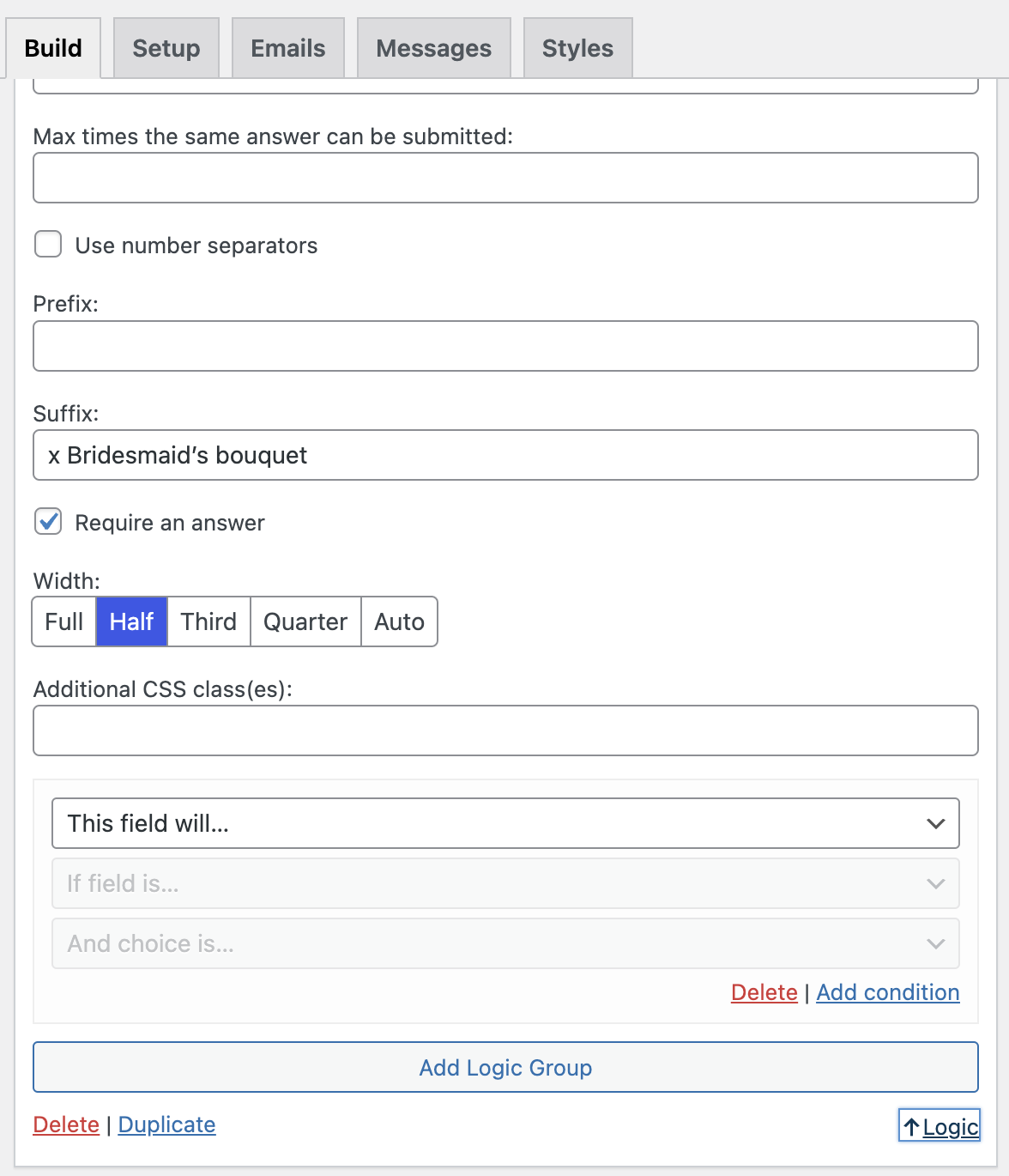
4. Once you click on logic, a logic group will appear.
5. On the first condition, it will ask whether to show or hide your current field.
6. On the second condition, you will select the field that will serve as the option picker.
7. On the third condition, you will select the option.
8. Now, once those conditions are met, the field that you added the logic will either appear or be hidden.
9. Furthermore, you can click the "Add condition" button to combine another field that must meet the conditions.
10. Lastly, when you click "Add Logic Group" button, it will create a seperate set of conditions and instructions for your current field to meet.
**Conditional Logic is used to show or hide form fields based off of the user's input. This is helpful in organizing your forms making it look cleaner and clutter free.**
---
# Setting up radio fields
> Learn how to set up radio fields in Happyforms.
Source: /happyforms-fields/setting-up-radio-fields
# Setting up radio fields
1. On your Form Editor, head to **Build tab.**
2. Click **"Add a Field"** button then select radio.
3. From there, you can now add a label and a hint.
4. You have an option to create a sub label for organizing your choices by clicking the **"Add Heading"** button.
5. There are two ways to add a choice on your radio field, either you create a seperate choice one by one by clicking the **"Add Choice"** button or you can create several choices in one go by clicking the **"Bulk Add Choices"** button.
6. Once done, you may tick the **"Shuffle order of choices"** checkbox for randomization. Additionally, if you don't want your field to be left blank just tick the **"Require an answer"** checkbox.
7. Personalize your radio field further by adjusting the alignment of the choices and the width of your field. You may also add Additional CSS class/es for a more advance customization.
**Here is an example of what your radio field may look like:**
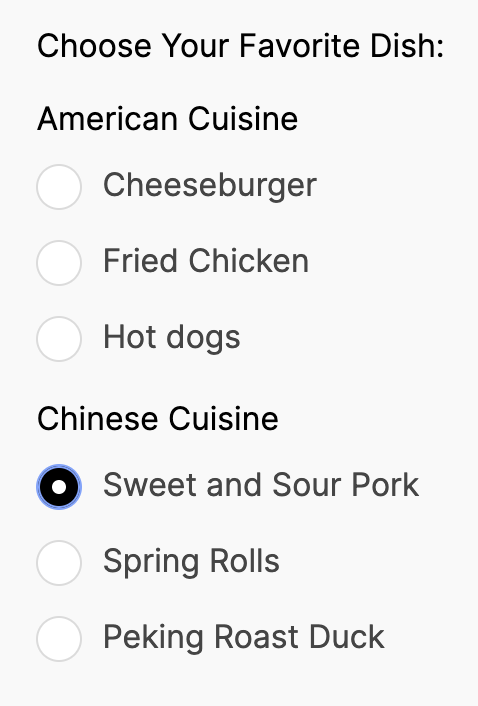
Note: You can only select one choice in radio fields.
---
# Setting up checkbox fields
> Learn how to set up checkbox fields in Happyforms.
Source: /happyforms-fields/setting-up-checkbox-fields
# Setting up checkbox fields
1. On your Form Editor, head to **Build tab.**
2. Click **"Add a Field"** button then select checkbox.
3. From there, you can now add a label and a hint.
4. You have an option to create a sub label for organizing your choices by clicking the **"Add Heading"** button.
5. There are two ways to add a choice on your checkbox field, either you create a seperate choice one by one by clicking the **"Add Choice"** button or you can create several choices in one go by clicking the **"Bulk Add Choices"** button.
6. Once done, you may tick the **"Shuffle order of choices"** checkbox for randomization. Additionally, if you don't want your field to be left blank just tick the **"Require an answer"** checkbox.
7. Since you are using a checkbox field, you can set the minimum and maximum number of choices that can be made by ticking the **"Limit choices"** checkbox.
8. Personalize your checkbox field further by adjusting the alignment of the choices and the width of your field. You may also add Additional CSS class/es for a more advance customization.
**Here is an example of what your checkbox field may look like:**
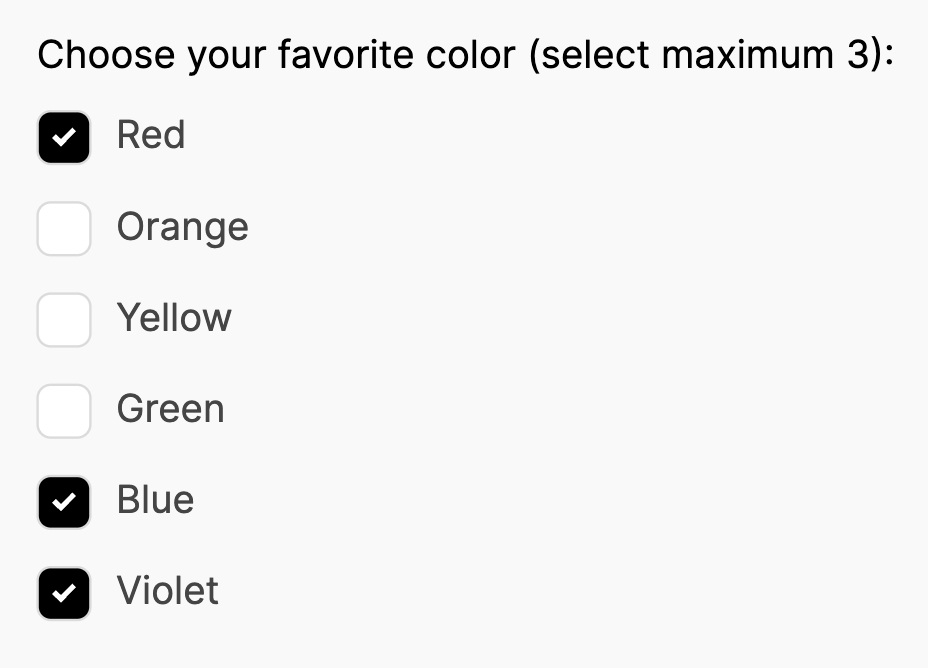
Note: Checkbox fields can be used for multiple choices type of question.
---
# Setting up file upload fields
> Learn how to set up file upload fields in Happyforms.
Source: /happyforms-fields/setting-up-file-upload-fields
# Setting up file upload fields
1. On your Form Editor, head to **Build tab.**
2. Click **"Add a Field"** button then select file upload.
3. From there, you can now add a label, placeholder, and hint.
4. Set the minimum and maximum number of files the user can insert.
5. After, set the maximum size (MB) of each file. It is set to 40MB by default.
6. At the **Allowed File types** area, you can customize the type of file your field can only accept.
7. Once done, you may tick the **"Require an answer"** checkbox if you don't want your field to be left blank.
8. Personalize your file upload field further by adjusting the width of your field. You may also add Additional CSS class/es for a more advance customization.
**Here is an example of what your file upload field may look like:**

---
# Setting up dropdown fields
> Learn how to set up dropdown fields in Happyforms.
Source: /happyforms-fields/setting-up-dropdown-fields
# Setting up dropdown fields
1. On your Form Editor, head to **Build tab.**
2. Click **"Add a Field"** button then select dropdown.
3. From there, you can now add a label, placeholder and, hint.
4. You have an option to create a sub label for organizing your choices by clicking the **"Add Heading"** button.
5. There are two ways to add a choice on your dropdown field, either you create a seperate choice one by one by clicking the **"Add Choice"** button or you can create several choices in one go by clicking the **"Bulk Add Choices"** button.
6. Once done, you may tick the **"Shuffle order of choices"** checkbox for randomization. Additionally, if you don't want your field to be left blank just tick the **"Require an answer"** checkbox.
7. Personalize your radio field further by adjusting the width of your field. You may also add Additional CSS class/es for a more advance customization.
**Here is an example of what your dropdown field may look like:**



Note: You can only select one choice in dropdown fields.
---
# Setting up date-time fields
> Learn how to set up date-time fields in Happyforms.
Source: /happyforms-fields/setting-up-date-time-fields
# Setting up date-time fields
1. On your Form Editor, head to **Build tab.**
2. Click **"Add a Field"** button then select date-time.
3. From there, you can now add a label and a hint.
4. Now you can click the **"Show"** dropdown menu and then select the option that you want to appear on your field: Date, Time, Year, Month & Year, etc.
5. You can specify the defualt value to be set to blank or the current date and time.
6. Specify the minimum and the maximum year the user can select.
7. If you selected the show time, you can specify the minimum and maximum hour that will show. Furthermore, if you selected the 12-hour clock convention then you can only go up to hour 12, but if you selected the 24-hour clock convention then you can reach up to hour 23.
8. Once done, you may tick the **"Require an answer"** checkbox if you don't want your field to be left blank.
9. Personalize your date-time field further by adjusting the width of your field. You may also add Additional CSS class/es for a more advance customization.
**Here is an example of what your date-time field may look like:**

Once you click the calendar button on the right this will show:
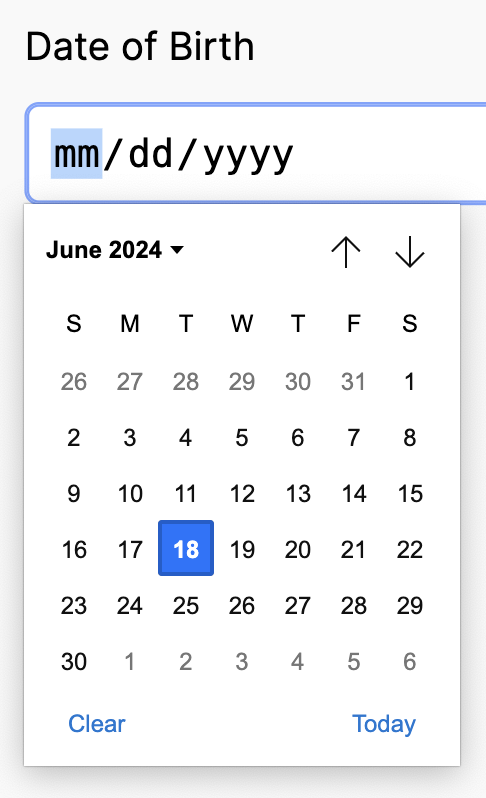
---
# Setting up signature fields
> Learn how to set up signature fields in Happyforms.
Source: /happyforms-fields/setting-up-signature-fields
# Setting up signature fields
1. On your Form Editor, head to **Build tab.**
2. Click **"Add a Field"** button then select signature.
3. From there, you can now add a label and a hint.
4. Once done, you may tick the **"Require an answer"** checkbox if you don't want your field to be left blank.
5. Personalize your signature field further by adjusting the width of your field. You may also add Additional CSS class/es for a more advance customization.
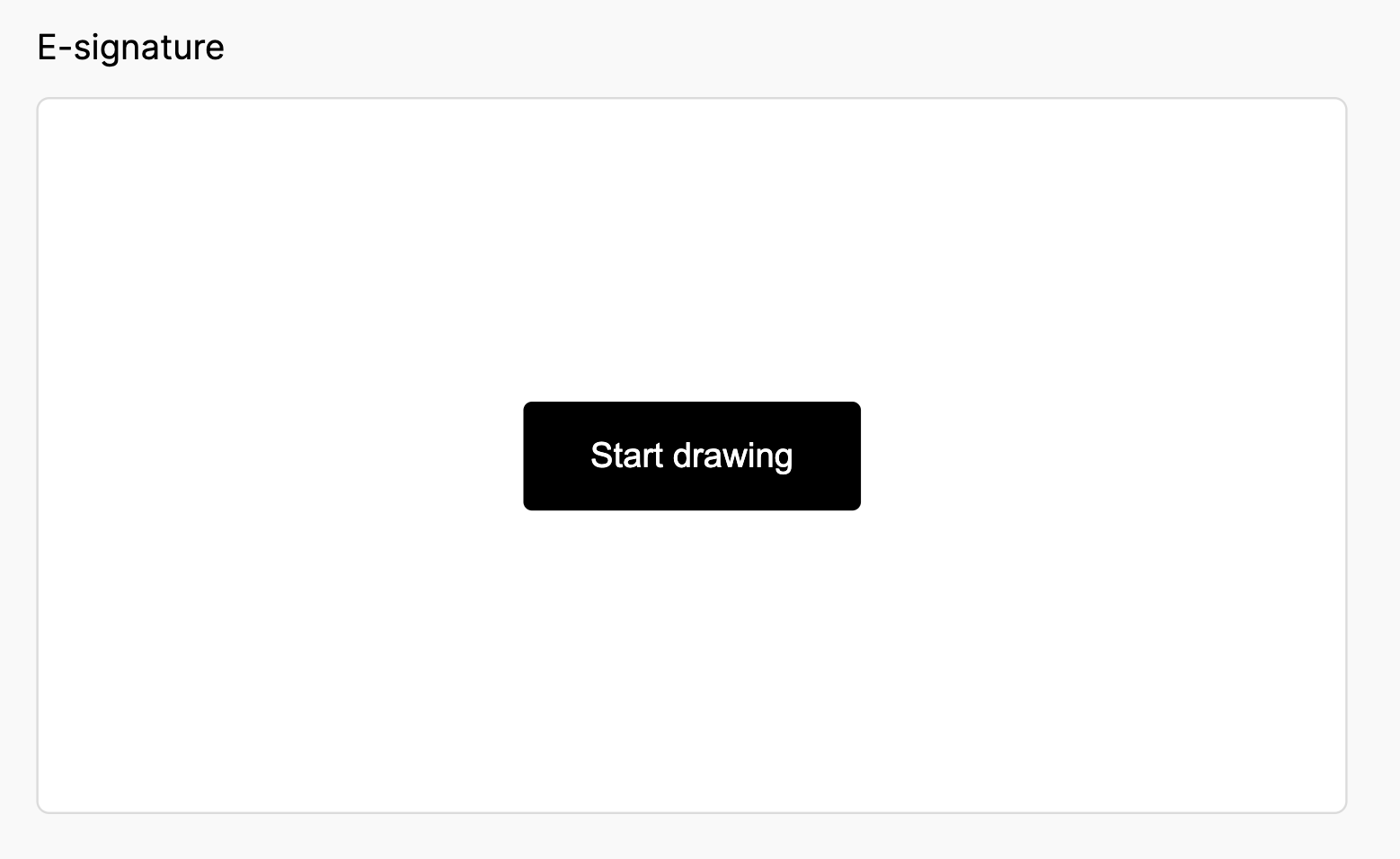
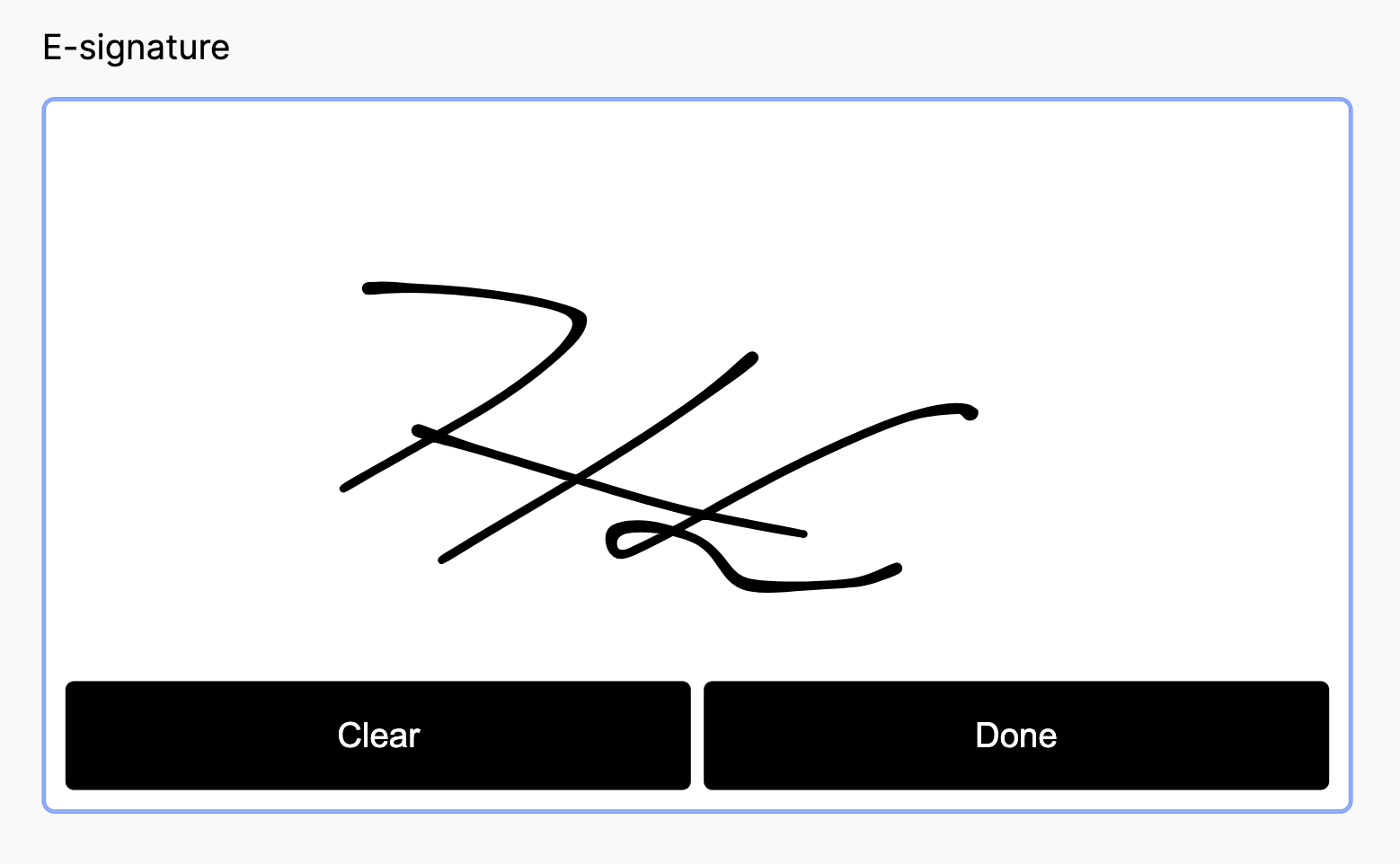
6. You may test your signature field by clicking the **"Start"** button. Begin drawing your e-signature, you may click the **"clear"** button to restart then the **"done"** button if you are satisfied.
**Here is an example of what your signarture field may look like:**
---
# Setting up multi-page forms using page break fields
> Learn how to set up multi-page forms using page break fields in Happyforms.
Source: /happyforms-fields/setting-up-multi-page-forms-using-page-break-fields
# Setting up multi-page forms using page break fields
1. On your Form Editor, head to **Build tab.**
2. Click **"Add a Field"** button then select page break.
3. From there, you can now add a name. This will serve as the label of each page.
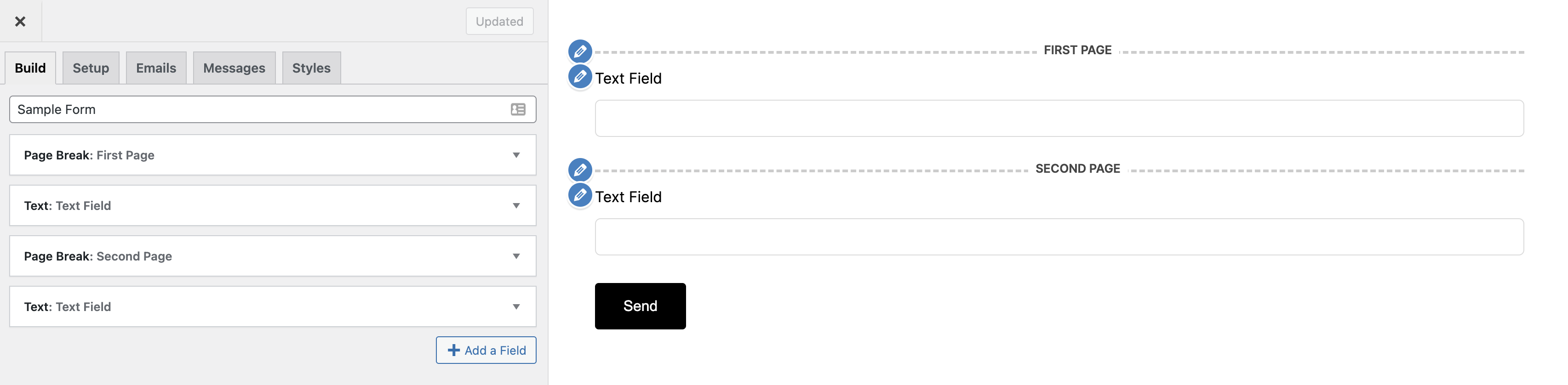
4. In setting up a multi-page form you need atleast two page break fields, the first one will be for the first page of your form then the second page break field will be for the next page, so on and so forth.
5. Imagine each page break field as a page itself.
6. If you want to customize the **"Step Label"** just head to **"Messages Tab"** then head to the bottom and you will see the "Current Page" option. Change it to your preferences.
7. Personalize your page break field further by adding Additional CSS class/es for a more advance customization.
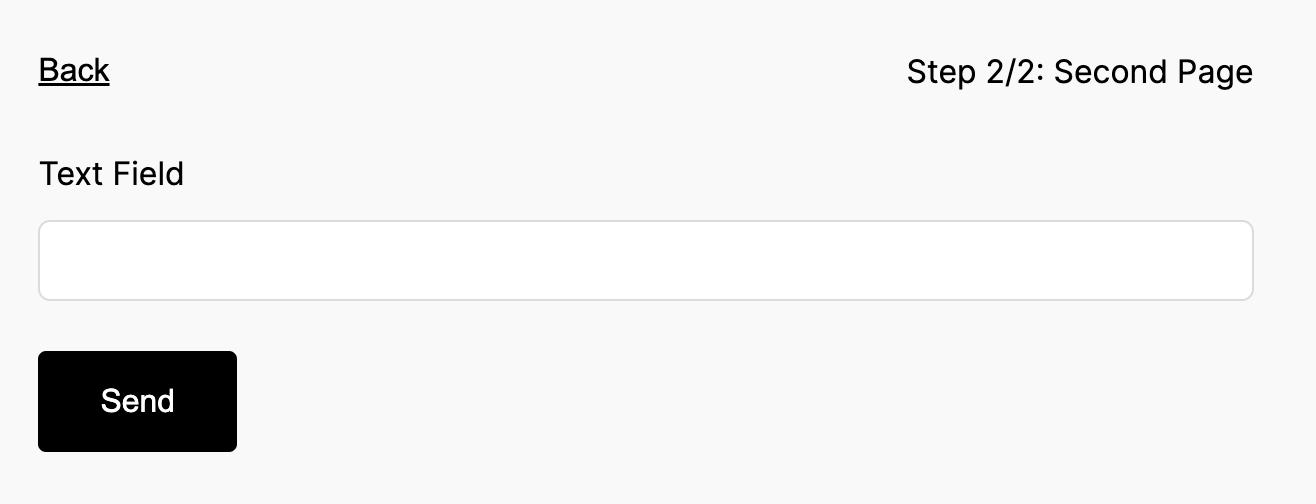
**Here is and example of how your form builder may look like:**
**Here is an example of what your multi-page form may look like:**
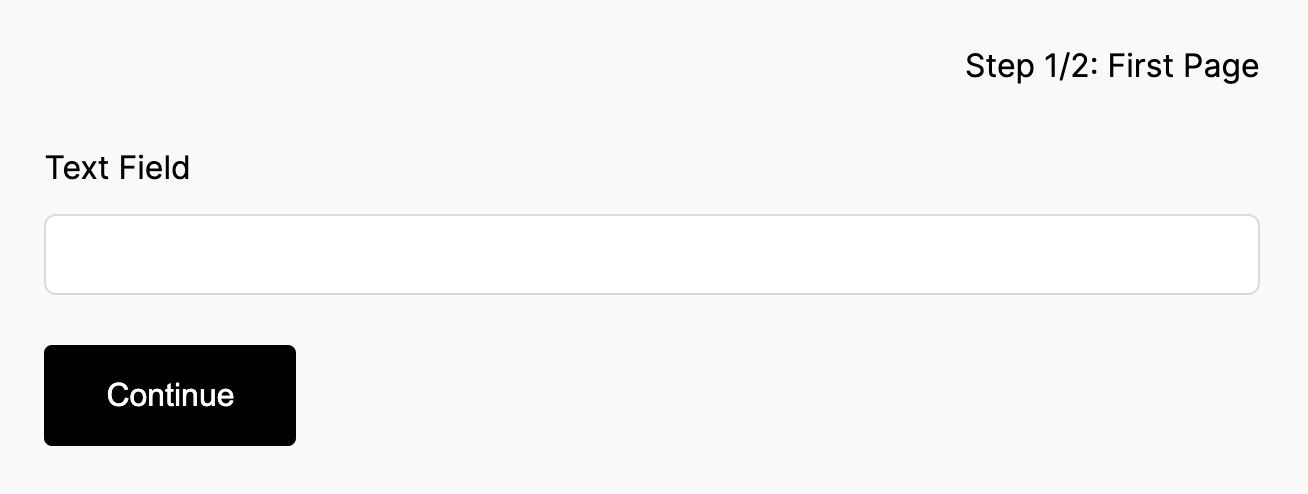
**Once you click continue:**
---
# Setting up reCAPTCHA
> Learn how to set up reCAPTCHA in Happyforms.
Source: /happyforms-fields/setting-up-recaptcha
# Setting up reCAPTCHA
1. On your WordPress dahsboard, head to **"Forms"** then select **"Integrations"**.
2. Find the recaptcha integration. Once you're there you will see several options.
3. Select the version of recaptcha service that you want to use. V2 only accepts your website's key and recaptcha's secret key, while V3 have an additonal option which is the minimum accepted score, in this way the security will be a little bit tighter.
4. Make sure you input the correct details required in the setup. Once done, make sure to hit the "**save changes**" button.
5. After all the steps, try to test your form, recaptcha should appear before the submit button.
---
# Hiding fields using CSS
> Learn how to hide fields using CSS in Happyforms.
Source: /happyforms-fields/hiding-fields-using-css
# Hiding fields using CSS
1. On your Form Editor, head to **Build tab.**
2. Select the field that you want to hide, find the **"Additional CSS Class(es)"** section then input the name of the new class that will be added on that field.
**Here is an example:**

3. Once the new class is declared on your field, head to your theme's customization settings. To do this, head to your WordPress Dashboard, click **"Appearance"** then "**Customize".**
4. Find the **"Additional CSS"** tab then insert this code snippet.
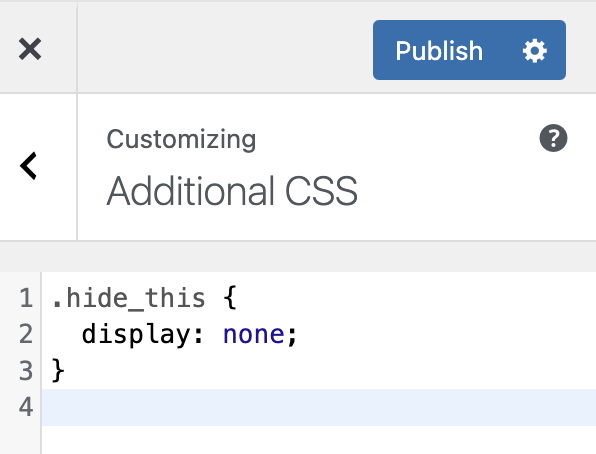
3. If ever the **"Additional CSS"** tab is not available you can try adding it on the **style.css** file. To get there, head to your WordPress Dashboard, click **"Appearance"** then select **"Theme File Editor".** Find the **style.css** file then add the same code snippet.

6. Make sure to **"update"** or **"publish"** to save your configuration.