
Setting up date-time fields
- On your Form Editor, head to Build tab.
- Click "Add a Field" button then select date-time.
- From there, you can now add a label and a hint.
- Now you can click the "Show" dropdown menu and then select the option that you want to appear on your field: Date, Time, Year, Month & Year, etc.
- You can specify the defualt value to be set to blank or the current date and time.
- Specify the minimum and the maximum year the user can select.
- If you selected the show time, you can specify the minimum and maximum hour that will show. Furthermore, if you selected the 12-hour clock convention then you can only go up to hour 12, but if you selected the 24-hour clock convention then you can reach up to hour 23.
- Once done, you may tick the "Require an answer" checkbox if you don't want your field to be left blank.
- Personalize your date-time field further by adjusting the width of your field. You may also add Additional CSS class/es for a more advance customization.
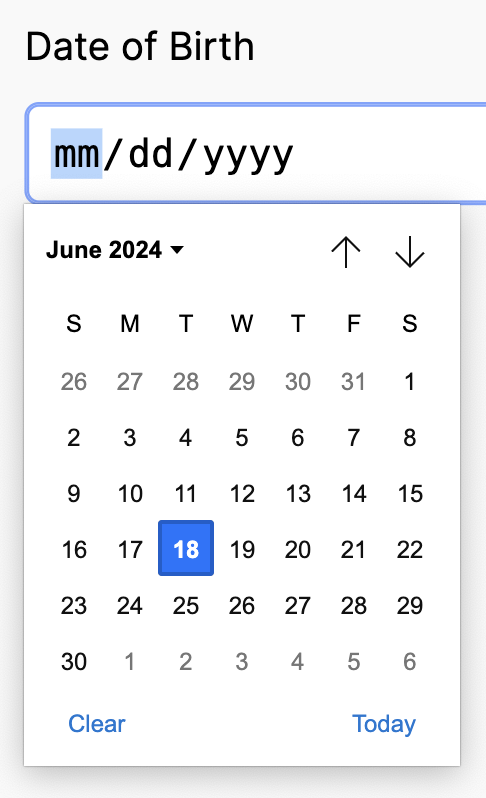
Here is an example of what your date-time field may look like:

Once you click the calendar button on the right this will show: